
You no longer need Giphy, Photoshop or a separate animation app to make a custom GIF. Since OpenAI’s Images 2.6 update, ChatGPT can turn a text prompt or a photo into a short looping GIF, right inside a normal chat.
Quick answer: how to make GIFs in ChatGPT
- Open a new chat in ChatGPT (web, desktop, iPhone or Android).
- Optional: attach a photo, logo or sketch you want to animate.
- Type “Make a looping GIF of…” and describe what should move and what should stay still.
- Wait for it to generate, then adjust the speed, ask for fixes, and download or share it.
That’s the short version. Below we walk through both methods (text and photo), give you 12 prompts you can copy, show how to edit speed and frames, and explain what to do if the GIF option hasn’t reached your account yet.
Can ChatGPT make GIFs now?
Yes. OpenAI released ChatGPT Images 2.6 on November 4, 2026, and animated GIFs are the headline feature. You can start from a prompt or an image, then change the speed, edit single frames and share the result, according to OpenAI’s launch post on X.
Before this update, ChatGPT couldn’t make a real GIF in one step. The old trick was to ask for a grid of still frames and then have ChatGPT stitch them together with code. We still cover that method below as a backup.
A few things to know before you start:
- All plans get Images 2.6. OpenAI says it’s available worldwide on every ChatGPT plan, free included, on desktop, mobile and web (Notebookcheck).
- GIFs are still rolling out. OpenAI’s Images in ChatGPT help article says GIF creation is rolling out, so some accounts don’t have it yet.
- Image generation got faster. OpenAI says Images 2.6 creates images about 50% faster than the previous model.
- There’s no separate GIF button. You just ask for a GIF in the chat.
If you’re wondering whether a paid plan is worth it for image work, our ChatGPT Plus review compares what each plan gets.
How to make a GIF in ChatGPT from text (step by step)
This is the fastest route when you don’t have an image to start from. ChatGPT draws the subject and the motion from your words.
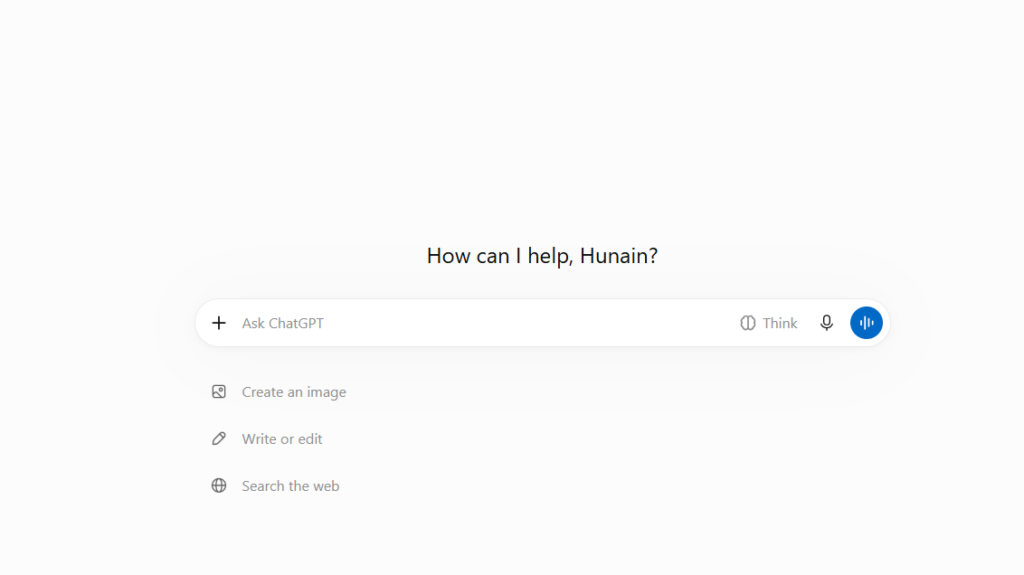
Step 1: Open a new chat
Go to chatgpt.com or open the ChatGPT app and start a fresh conversation. A new chat stops older instructions from leaking into your animation. You can also open the sidebar, select Images and start from there.
Step 2: Ask for a looping GIF and describe the motion
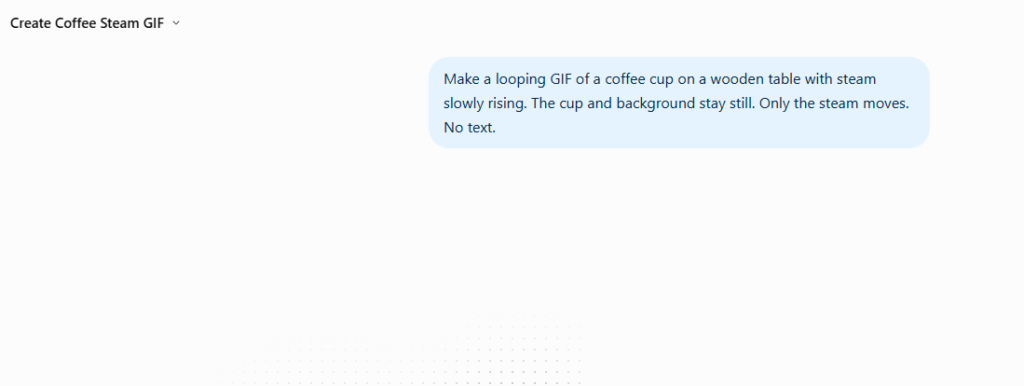
Use the word “GIF” in your request so ChatGPT knows you want animation, not a still image. Then describe the movement, not just the subject. Compare these:
- Weak: “Make a GIF of a coffee cup.”
- Strong: “Make a looping GIF of a coffee cup on a wooden table with steam slowly rising. The cup and background stay still. Only the steam moves. No text.”
The second prompt tells ChatGPT exactly what moves and what doesn’t, which is the single biggest factor in a clean result.
Step 3: Wait for it to generate
GIFs take longer than a single image because ChatGPT has to draw several frames that match each other. Complex scenes can take a few minutes. You can keep using the chat while it works.
Step 4: Review the loop
Watch it a few times. Check that the subject looks the same in every frame and that the last frame flows back into the first without a jump. If something is off, go to the editing section below.
Step 5: Adjust speed, then save or share
Open the finished GIF to change the playback speed, then download it or share it. Every image you create is also saved under Images in the sidebar, so you can find it later (OpenAI Help Center).

How to turn a photo into a GIF in ChatGPT
Starting from your own image gives you far more control. It’s the best route for product shots, logos, mascots and pet photos.
- Start a new chat.
- Upload your image. Tap the + icon in the message box and choose Add photos & files, or drag the file into the chat. ChatGPT accepts PNG, JPEG and non-animated GIF files up to 20MB (OpenAI image inputs FAQ).
- Describe the motion. Say what should move and, just as important, what must stay exactly as it is. For example: “Turn this photo into a looping GIF. Make my dog’s tail wag and ears twitch slightly. Keep his face, the sofa and the background exactly the same.”
- Generate and review. Check every frame for faces or details that change shape. Small, gentle movements work much better than big ones.
- Fix, adjust speed and download.
Tips for better photo GIFs
- Use a sharp, well-lit image with one clear subject.
- Ask for one small motion (a wave, a blink, a nod, rising steam) rather than a whole action scene.
- Tell ChatGPT to keep the camera fixed. Otherwise it may zoom or pan.
- Only animate photos of people who are okay with it.
One limit to know: ChatGPT can’t edit an animated GIF that you upload. It can only change GIFs it created itself. If you want to rework an old GIF, upload a single still frame from it and animate that instead.
You can also animate a sketch. OpenAI says a simple drawing can become an animated character, which is handy if you’ve doodled a logo or mascot idea on paper.
The ChatGPT GIF prompt formula
Good GIF prompts answer five questions. Use this template and fill in the brackets:
Make a looping GIF of [subject] [doing one small motion]. Keep [what must not change] exactly the same in every frame. Fixed camera, [style], [square / vertical / landscape]. The last frame should flow smoothly back into the first. No text.| Part | What to write | Why it matters |
|---|---|---|
| Subject | One clear character, object or product | More subjects means more things that can drift |
| Motion | One small action, described as it happens | Big actions break consistency between frames |
| What stays still | Background, face, outfit, product shape | Anything you leave open may get animated |
| Style and shape | Flat cartoon, 3D, photo-real; square or vertical | Matches where you’ll post it |
| Loop | “Last frame flows back into the first” | Stops the visible jump when it repeats |
Ask for no text inside the GIF. AI images still get lettering wrong sometimes, so add captions afterwards in Canva or your social media tool instead. Our Canva AI review covers the easiest way to do that.
12 ChatGPT GIF prompts you can copy
These are written for freelancers, creators and small businesses. Swap the brackets for your own details.
For social media and replies
- Thumbs up reaction: “Make a looping GIF of a friendly cartoon character giving a thumbs up and smiling. Flat colors, plain background, fixed camera, no text.”
- Mind blown: “Make a looping GIF of a cartoon cat whose eyes go wide in surprise, then slowly blinks. Same cat in every frame, pastel background, no text.”
- Celebration: “Make a looping GIF of a small robot mascot doing a short happy dance as confetti falls. Fixed camera, square format.”
For your business and brand
- Logo pulse: “Turn this logo into a looping GIF where it gently pulses and glows on a dark background. Keep the logo shape and colors exactly the same.”
- Product loop: “Turn this product photo into a looping GIF where the product slowly rotates a few degrees back and forth. Same lighting, plain white background, fixed camera.”
- Mascot wave: “Turn this mascot drawing into a looping GIF where it waves one hand, then settles back. Keep its face, colors and outfit the same.”
- Sale banner motion: “Make a looping GIF of a shopping bag gently bouncing with small sparkles around it. Flat illustration style, horizontal, no text.”
For content and email
- Email header: “Make a looping GIF of a paper plane flying across a soft blue sky and returning to the start. Landscape format, minimal style.”
- Coffee and laptop: “Make a looping GIF of a laptop on a desk with steam rising from a mug next to it. Only the steam moves. Cozy, warm lighting.”
- Loading animation: “Make a looping GIF of three dots bouncing one after another, minimal flat style, white background.”
From your own photos
- Pet: “Turn this photo of my pet into a looping GIF where its tail wags and it tilts its head slightly. Keep its face and the background the same.”
- Festive greeting: “Turn this photo into a looping holiday greeting GIF with soft snow falling. Keep everyone’s faces and the room exactly the same.”
Want more ready-made prompts for client work? Our prompt library collects the ones we use most.
How to edit a ChatGPT GIF: speed, frames and fixes
You don’t have to accept the first result. Once ChatGPT has made the GIF, you have three ways to improve it.
1. Change the playback speed. Open the GIF and use the speed control. Reports from the launch demo put the range at roughly half speed to double speed (Android Authority), but check the options on your own account. Do this before re-prompting, since it doesn’t redraw anything.
2. Fix a single bad frame. OpenAI says you can edit individual frames. Step through the frames, find the one where a hand gains a finger or a face looks off, and ask ChatGPT to fix just that frame.
3. Describe the change in the chat. For anything bigger, just reply in the conversation. OpenAI’s help center confirms this is how you change a GIF ChatGPT created. Examples:
- “Make the motion slower and smoother.”
- “Keep everything the same but change the mug to blue.”
- “Make it vertical for Instagram Stories.”
- “The face changes in the middle frames. Keep it identical in every frame.”
Our tip: finish your content edits first and set the speed last. Early testers report that a typed edit redraws the whole GIF, so a speed change made before it may not carry over.
Saving and sharing your GIF
- Download it to your device or use the share option on the finished GIF.
- Find it again later under Images in the ChatGPT sidebar.
- Before you post, send it to yourself and check that it actually moves in the app you’ll use. Some platforms convert GIFs to video or stills.
- If you use GIFs on your website, keep them small. Heavy GIFs slow pages down, which can hurt rankings and readers’ patience.
Is the ChatGPT GIF maker free?
Yes, as far as OpenAI has said. Images 2.6 is available on every ChatGPT plan, including the free one. What OpenAI hasn’t published is how many GIFs each plan can make per day, how long a GIF can be or its maximum resolution. Treat any exact daily limit you see online as a guess until OpenAI documents it.
In practice, paid plans have always had more generous image limits than the free plan, so if you plan to make GIFs for clients every week, a paid plan is the safer bet. Our ChatGPT Plus review breaks down what you get on each tier.
ChatGPT GIF not working? Try these fixes
| Problem | What to do |
|---|---|
| You get a still image, not a GIF | Your account may not have the GIF rollout yet. Update the app, start a new chat, say “animated looping GIF” clearly, and try the web version too |
| The character changes between frames | Ask for a smaller motion and add “same character in every frame”. Then fix the bad frame |
| The loop jumps when it restarts | Add “the last frame flows smoothly back into the first” |
| Text in the GIF is misspelled | Ask for “no text” and add captions afterwards in Canva |
| ChatGPT won’t edit your GIF | It can’t edit animated GIFs you upload. Upload a still frame instead |
| It’s taking ages | GIFs take longer than images. Wait a few minutes, or simplify the scene |
| The saved file doesn’t move | Open it in a browser to check it’s a GIF and not a single frame, then download again |
Plan B: make a GIF before the feature reaches you
If your account still only gives you still images, the older method works on any plan. It takes a few more steps:
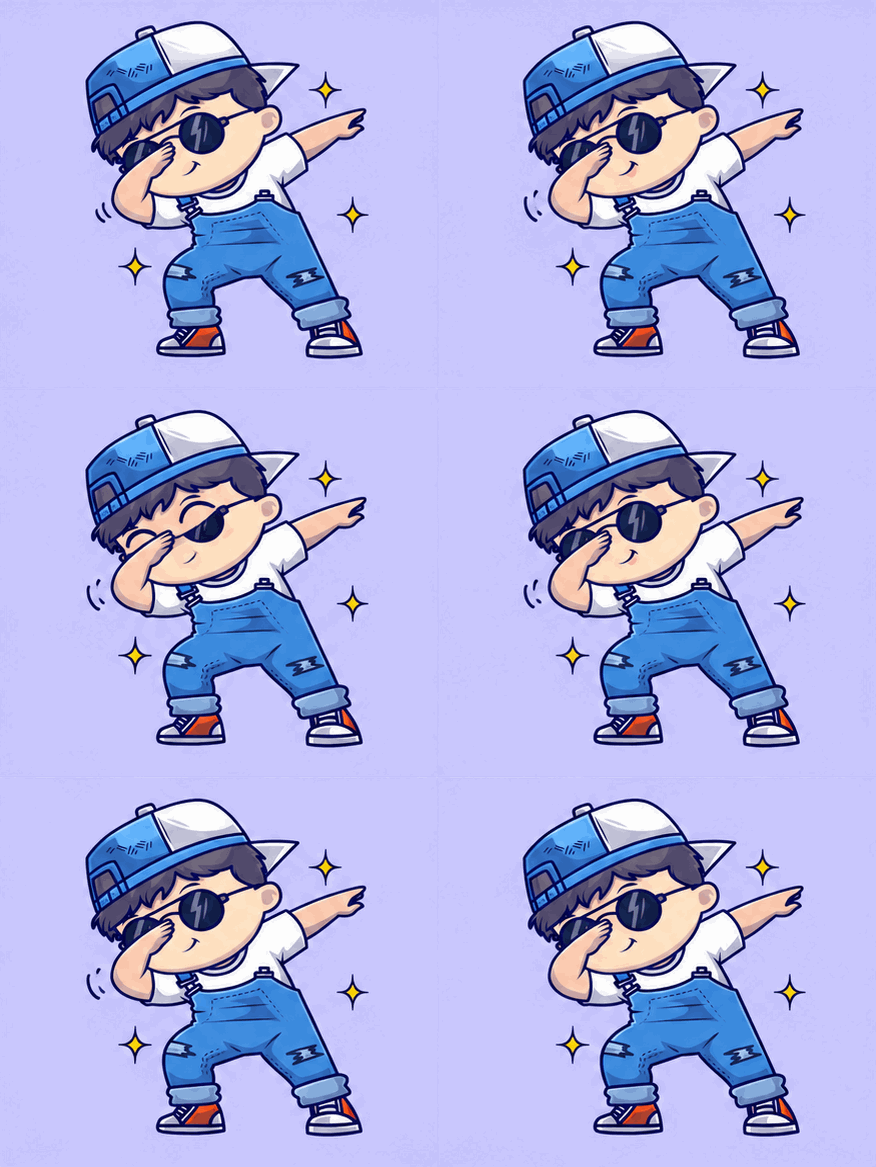
- Ask: “Create a sprite sheet of 6 frames in a 3 by 2 grid showing [subject] [motion], same character and background in every frame, fixed camera, no text.”
- Then ask: “Use Python to cut this sprite sheet into 6 frames and combine them into a looping animated GIF at 150 ms per frame. Give me the file to download.”
ChatGPT uses its built-in code tool to slice the grid and stitch the GIF. The motion is choppier than the new feature, but it works today. Users on the OpenAI Developer Community have shared a similar frame-by-frame workflow.
5 ways freelancers and small businesses can use ChatGPT GIFs
- Product listings and ads. A subtle rotating product loop catches the eye on Etsy, Shopify or a Facebook ad better than a still photo. Keep the product’s real look so buyers get what they see.
- Branded reactions. Animate your mascot giving a thumbs up or celebrating, and reuse it in replies, DMs and community posts.
- Email newsletters. Most email apps play GIFs but not video, so a small animated header can lift attention. Keep the file light.
- Client social content. If you manage social accounts, you can turn a client’s logo or product into a quick loop in minutes instead of opening animation software.
- Storyboards before video. Test a character’s movement as a GIF before paying for a full video tool.
For more tools that fit this kind of work, see our list of the best AI tools for content creators.
When to use something other than ChatGPT
ChatGPT GIFs are short, silent loops. They’re great for custom animations nothing else has, but they aren’t the right tool for every job.
| You need | Better choice |
|---|---|
| A famous reaction clip everyone recognizes | A GIF library like Giphy or Tenor |
| Your own mascot, product or photo moving | ChatGPT |
| Animated text, captions or templates | Canva or other AI design tools |
| A longer clip with sound or camera moves | An AI video generator. See our Runway vs Kling vs Veo vs Pika comparison |
| Quick video edits for social | FlexClip or CapCut |
One note on video: OpenAI shut down its Sora video app earlier this year, so ChatGPT itself doesn’t make video clips. GIFs are as far as it goes for motion.
FAQ
Can ChatGPT make GIFs? Yes. Since the Images 2.6 update on November 4, 2026, ChatGPT can create animated GIFs from a text prompt or an uploaded image. The feature is still rolling out, so not every account has it yet.
Is making GIFs in ChatGPT free? Images 2.6 is available on all plans, including free. OpenAI hasn’t published GIF limits for any plan.
How do I turn a picture into a GIF with ChatGPT? Upload the photo with the + button, then ask for a looping GIF and describe the motion. Say what should stay the same so the subject doesn’t change.
Can ChatGPT edit a GIF I already have? No. It can only edit GIFs it created. Upload a still frame from your GIF and animate that instead.
Can I change the speed of a ChatGPT GIF? Yes. Open the finished GIF and use the speed control, or ask for slower or faster motion in the chat.
Why does ChatGPT give me a still image instead of a GIF? The GIF feature probably hasn’t reached your account yet. Use the sprite sheet method above in the meantime.
Can ChatGPT make GIFs with text? It can, but lettering may come out wrong. For clean captions, make the GIF without text and add words in Canva.
Is there a ChatGPT GIF API? OpenAI launched two developer image models alongside Images 2.6, GPT-Image-2.6 Flare (faster) and Sunburst (higher quality). Check OpenAI’s API docs for GIF output details before building on them.
Our verdict
ChatGPT’s GIF maker is the easiest way we’ve found to get a custom animated loop without learning animation software. It shines for product loops, mascots and quick reactions, especially when you start from your own image. It’s still new: limits aren’t published, the rollout is gradual, and small motions work far better than big ones. Start with one of the prompts above, keep the movement simple, and fix weak frames before you post.
If you’re choosing between assistants for creative work, read our ChatGPT vs Claude comparison or see where ChatGPT lands in our AI tool tier list.