
Disclosure: AI Tested Guide may earn a commission from some links on this page, at no extra cost to you. Clipping Factory is made by Clipping Joint, which is owned by AI Tested Guide’s founder.
Why AI captions for GTA 6 clips matter
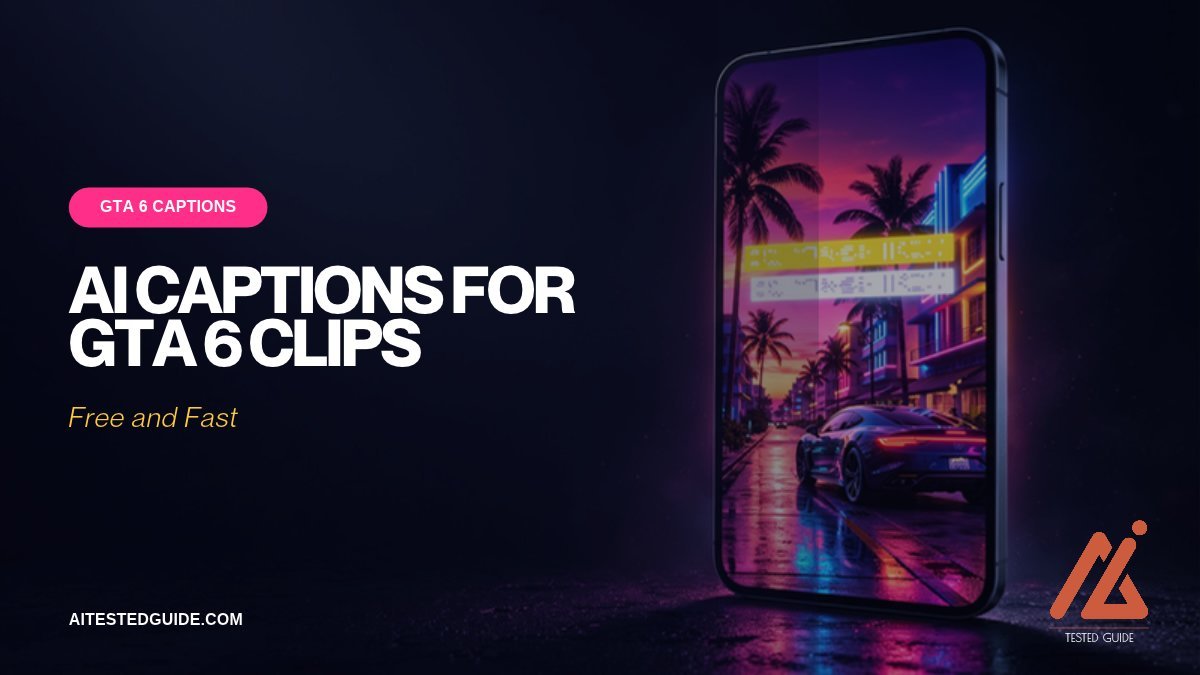
AI captions for GTA 6 clips are one of the cheapest upgrades you can make. Many people scroll short-form feeds with the sound off, and a clip they can’t follow gets skipped. Captions keep them watching, and watch time is a major signal that pushes clips to more people.
Captions also help accessibility, make your commentary land even when viewers can’t hear it, and give platforms more text to understand what your clip is about.
The best AI caption tools for GTA 6 clips
| Tool | Strength | Free option? | Best for |
|---|---|---|---|
| CapCut | Fast auto-captions, many animated styles | Yes | Most short-form creators |
| TikTok’s built-in captions | Quick, posted from the app | Yes | Posting straight to TikTok |
| YouTube auto-captions | Closed captions on Shorts and long videos | Yes | Accessibility and search |
| Descript | Accurate transcripts, easy text editing | Limited | Commentary-heavy videos |
| Opus Clip | Captions added while it clips | Limited | Auto-clipping workflows |
Burned-in captions (part of the video) and closed captions (a separate text track viewers can turn on) do different jobs. For Shorts and TikToks, burned-in captions are the norm, because they show for everyone, sound on or off.
How to add AI captions in CapCut, step by step
- Import your vertical clip into a 9:16 project.
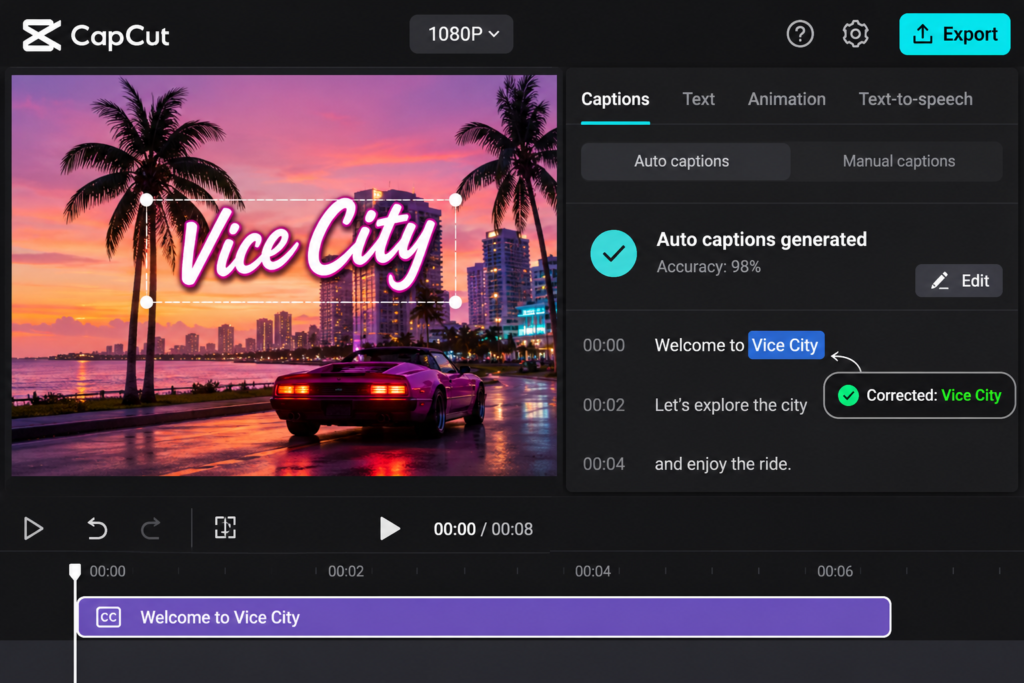
- Tap Text, then Auto captions, and choose the spoken language.
- Pick a style: bold font, thick outline or shadow, white or yellow text.
- Move captions to the middle third of the screen, away from the GTA HUD and the platform’s buttons.
- Proofread every line. AI regularly mishears game names.
- Highlight one or two key words per line in a second colour.
- Save the style so every future clip looks the same.
Words AI will get wrong in GTA 6 clips
Keep a list and check for these every time:
| Correct | Common AI mistakes |
|---|---|
| Lucia | Lucy, Lusia, Luchia |
| Jason | Jayson, Jason’s (when it isn’t) |
| Leonida | Leonita, Leonardo, Lenida |
| Vice City | Vice city, Vice Sitty, Vice-City |
| Rockstar | Rock star |
| GTA 6 | GTA six, G T A 6, GTA sticks |
Mis-heard words can make a caption say something you never said, so always proofread before posting.
Caption styles that keep people watching
- 2 to 4 words on screen at a time. Long lines are hard to read at feed speed.
- Thick outline or shadow. GTA 6’s bright sunsets and neon will swallow plain white text.
- Highlight the key word. “He just JUMPED the bridge”.
- Emojis sparingly. One at the payoff, not one per line.
- Consistent styling. The same font and colours on every clip make your page recognisable.
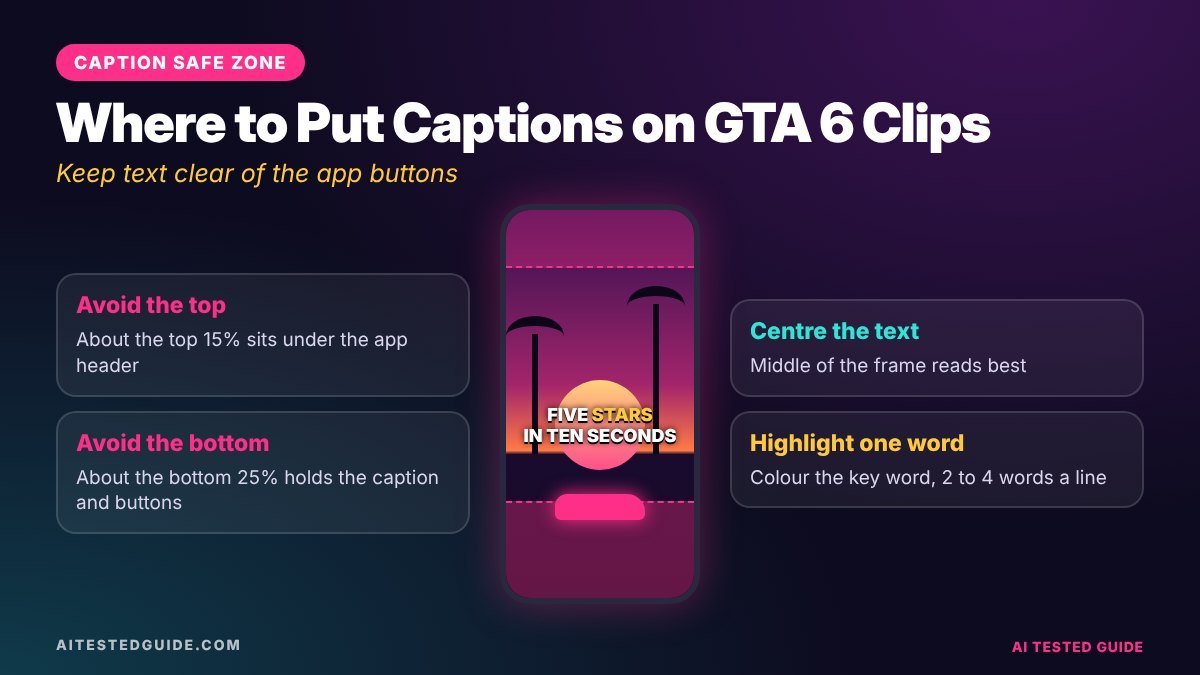
Where to put captions: the safe zone
Short-form apps cover parts of your video with their own buttons and text. Keep captions inside the safe zone:
| Area | What covers it | Put captions here? |
|---|---|---|
| Top strip | App header, sometimes your hook | Only your hook text |
| Centre | Nothing | Yes, this is the safe zone |
| Right edge | Like, comment and share buttons | No |
| Bottom strip | Username, description, music label | No |
Captioning gameplay with no commentary
No voice means no auto-captions to generate, but text still helps. Use:
- A hook at the top in the first second.
- Short labels at key moments: “wait for it”, “5 stars”, “nope”.
- NPC dialogue captions if a character says something funny.
Ask a chatbot for label ideas: “Give me 15 short on-screen labels, 1 to 3 words, for a GTA 6 police chase clip.”
Captions for long YouTube videos
For long videos, upload a caption file or use YouTube’s auto-captions in YouTube Studio, then correct the names. Accurate captions help accessibility and give YouTube clean text describing your video. Descript can export a corrected transcript as a caption file.
Four caption style recipes for GTA 6 pages
| Style | Look | Best for |
|---|---|---|
| Classic bold | White, heavy font, black outline, key word in yellow | Any clip, the safe default |
| Vice City neon | White text with a pink or teal glow | Night drives, city clips, aesthetic pages |
| Comic pop | Words pop in one at a time with a slight bounce | Comedy and NPC reaction clips |
| Minimal | Smaller clean text, lower contrast | Cinematic edits where the footage is the star |
Pick one style for your page and stick with it. Changing styles every clip makes a page look less established.
How hooks and captions work together
Your hook and your captions do different jobs. The hook sits at the top for the first one to three seconds and gives people a reason to stay. Captions run through the clip and help them follow along. Keep them visually different, for example a larger hook in a different colour, so viewers don’t confuse the two. If your clip has no talking, the hook carries even more weight.
Captioning roleplay and dialogue-heavy clips
Roleplay and comedy clips often have several voices. Help viewers keep track:
- Give each character a different caption colour.
- Add a small name label the first time each character speaks.
- Split lines at natural pauses, not mid-word.
- Leave a beat of silence uncaptioned before a punchline so the timing lands.
Translating captions to reach more viewers
GTA 6 has a worldwide audience, and translated captions can open a clip to viewers who don’t speak English. Some editors can translate auto-captions directly. You can also paste your corrected captions into a chatbot and ask for a natural translation, then check it with a native speaker for your biggest markets. Keep game names like Vice City, Lucia and Jason untranslated.
A weekly caption workflow
| Step | When | Time |
|---|---|---|
| Generate auto-captions for all clips | Batch, once a day or week | A few minutes |
| Proofread names and fix errors | Same session | 1 to 2 minutes per clip |
| Apply saved style and position | Same session | Seconds per clip |
| Add hooks and labels | After captions | 1 minute per clip |
| Spot-check on a phone | Before scheduling | A few minutes total |
Accessibility basics
Captions are essential for viewers who are deaf or hard of hearing, not just a growth trick. A few habits make them genuinely useful: caption all speech, not only the highlights; include important sounds in brackets, such as [sirens] or [explosion]; keep enough contrast between text and background; and leave captions on screen long enough to read comfortably.
Common caption mistakes
- Posting without proofreading. One wrong name makes a clip look careless.
- Captions covering the action. Move them if they hide the car, character or payoff.
- Too many words at once. Viewers can’t read a full sentence at feed speed.
- Tiny text. Check every clip on a phone before posting.
- Captions out of sync. Re-time any lines that appear early or late, especially around punchlines.
Before and after: what captions change
Picture the same 20-second clip twice. In the first version, there are no captions: a car speeds through traffic while you say something about the police, but anyone scrolling with the sound off just sees driving. In the second, a hook at the top reads “They brought a helicopter for THIS?”, captions follow your commentary word by word, and a single label, [sirens], appears as the police close in. Same footage, but now a silent viewer understands the joke within two seconds. That’s the whole case for captions.
Captions on Facebook and Instagram
Facebook and Instagram Reels follow the same rules as TikTok and Shorts: burned-in captions, centre placement and a strong first second. Two differences are worth knowing. Facebook audiences often skew a little older, so slightly larger, cleaner captions work well there. And because Facebook shows longer text descriptions under videos, use the post caption itself to add context or ask a question, which helps comments.
AI prompts that improve your captions
- “Here are my auto-captions for a GTA 6 clip. Fix spelling of game names (Lucia, Jason, Leonida, Vice City), keep my wording, and split lines into 2 to 4 words.”
- “Suggest 3 words to highlight in these captions to make the joke land.”
- “Write 10 short sound labels in brackets for a GTA 6 clip with a crash, sirens and a helicopter.”
AI is especially good at the boring part, cleaning up and splitting lines, which frees you to focus on timing.
How to test which caption style works best
Don’t guess, test. For two weeks, alternate between two caption styles, for example classic bold and comic pop, on clips of similar quality. Keep everything else the same: the hook format, length and posting time. Then compare average watch time and completion rate for each style. Small differences are normal, so only switch if one style clearly wins across several clips. Once you’ve picked a winner, run the same test on caption position or highlight colour. A few rounds of simple tests will tell you more about your audience than any general advice, including ours.
Pre-posting caption checklist
- Every spoken line is captioned and in sync
- Lucia, Jason, Leonida, Vice City and Rockstar are spelled correctly
- Captions sit in the centre safe zone and don’t hide the action
- Text is readable on a phone at arm’s length
- Important sounds are labelled in brackets
- The hook looks different from the captions
- The style matches the rest of your page
Run through it once per clip. It takes under a minute and catches the mistakes viewers notice most.
FAQ
What’s the best free tool for AI captions on GTA 6 clips? CapCut. Its auto-captions are fast, free and come with styles made for short-form.
Do captions really increase views? They help people follow clips with the sound off, which tends to improve watch time, and watch time helps clips spread.
Do captions help SEO? On YouTube, accurate closed captions give the platform more text to understand your video. Burned-in captions mainly help viewers.
How do I stop AI misspelling GTA 6 names? You can’t fully, so proofread every clip and keep a checklist of names like Lucia, Leonida and Vice City.
Should captions be burned in or closed? Burned in for Shorts and TikToks, so everyone sees them. Closed captions for long YouTube videos.
Can I caption clips with no commentary? Yes. Use a hook, short labels and NPC dialogue captions instead.
What font size should captions be on a vertical clip? Large enough to read on a phone at arm’s length. Preview on a real phone, not just your editor.
Should I caption game sounds? Caption important ones in brackets, like [sirens] or [crash], especially for accessibility.
Do I need captions if I post on YouTube only? Yes for Shorts, because many people watch without sound. For long videos, add accurate closed captions as well.
Keep reading
This post is part of our GTA 6 creator series. Start with the hub guide, How to Make GTA 6 Content with AI: The Complete Creator Guide, then go deeper:
- How to Turn GTA 6 Gameplay into Viral TikToks and Shorts with AI
- How to Make GTA 6 YouTube Shorts in 10 Minutes with AI
- Best AI Video Editors for GTA 6 Content
- How to Make GTA 6 YouTube Thumbnails with AI
Related tested reviews on AI Tested Guide:
- 10 Best AI Tools for Content Creators in 2026
- Runway vs Kling vs Veo vs Pika: The Best AI Video Generators
- Riverside Agents Review: Can AI Really Produce Your Podcast?
Sources and official links
Get clips ready for captions automatically
Clipping Factory by Clipping Joint cuts your long GTA 6 sessions into vertical clips, ready for your caption style. It’s a one-time payment, and we set it up for you.