
Creating videos used to mean downloading bulky editing software, spending hours learning timelines, and watching countless YouTube tutorials just to make a 60-second clip.
Today, AI promises something completely different.
Type a prompt, upload a few images, click a button, and supposedly you have a professional-looking video in minutes.
Naturally, that sounds almost too good to be true.
That’s exactly why we decided to take a closer look at FlexClip, one of the fastest-growing browser-based AI video editors.
Instead of repeating the same marketing claims you’ll find on dozens of affiliate websites, we evaluated what FlexClip actually offers, where it excels, and where it still falls short for real creators.
Whether you’re a blogger, marketer, YouTuber, freelancer, small business owner, or someone creating content for social media, this review will help you decide whether FlexClip deserves a place in your workflow.
We’ll cover everything from AI video generation and editing tools to templates, export quality, pricing, performance, and how it compares with competitors like Canva, CapCut, VEED, and InVideo.
By the end of this guide, you’ll know exactly who FlexClip is for, and who should probably look elsewhere.
Quick Verdict
Overall Rating: 9.1 / 10
| Category | Score |
| Ease of Use | ⭐ 9.8/10 |
| AI Features | ⭐ 9.0/10 |
| Templates | ⭐ 9.4/10 |
| Editing Experience | ⭐ 8.8/10 |
| Export Quality | ⭐ 9.2/10 |
| Value for Money | ⭐ 9.3/10 |
| Beginner Friendly | ⭐ 10/10 |
Best For
- Bloggers
- Digital marketers
- Small businesses
- Agencies
- YouTubers
- Social media managers
- Course creators
- Freelancers
Not Ideal For
- Professional filmmakers
- Hollywood-style editing
- Complex motion graphics
- Advanced VFX work
Pros
- Extremely beginner friendly
- No software installation required
- Excellent AI-powered video generation
- Thousands of ready-made templates
- Huge stock image and video library
- Automatic subtitles
- AI script generation
- AI text-to-video
- Fast learning curve
- Affordable compared to traditional editors
Cons
- Limited advanced timeline editing
- Heavy projects may take longer to render
- Some AI outputs require manual refinement
- Advanced creators may outgrow the editor
What Is FlexClip?
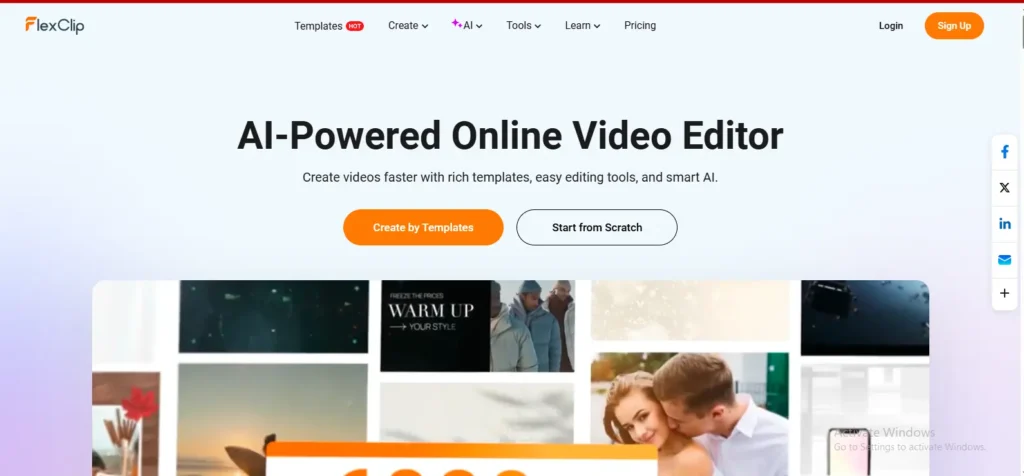
FlexClip is a cloud-based AI video editing platform designed to make professional video creation accessible to everyone.
Unlike traditional software such as Adobe Premiere Pro or DaVinci Resolve, FlexClip runs entirely in your browser. There’s nothing to download, install, or update.
Its biggest advantage is speed.
Instead of building every project from scratch, users can combine AI-generated content, drag-and-drop editing, professionally designed templates, stock footage, music libraries, and automated editing tools to produce videos much faster than traditional workflows.
Today, FlexClip supports a wide range of content formats, including:
- YouTube videos
- YouTube Shorts
- TikTok
- Instagram Reels
- Facebook videos
- Product advertisements
- Business presentations
- Marketing videos
- Explainer videos
- Educational content
- Slideshow videos
- Corporate presentations
For creators who publish content regularly, this dramatically reduces production time.
Why We Reviewed FlexClip
AI video tools are appearing almost every month.
Some are genuinely useful.
Others promise everything and deliver very little.
Instead of relying solely on promotional material, reviews, or feature lists, our goal is to evaluate AI software from the perspective of people who actually create content.
At AITestedGuide, every review follows the same philosophy:
- Understand what the tool claims to do.
- Evaluate its practical features.
- Compare it with competing products.
- Highlight both strengths and weaknesses.
- Explain which users benefit most from it.
Rather than declaring every feature “amazing,” we focus on where the software genuinely saves time, and where expectations should be realistic.
That’s the standard we’ve applied throughout this review.
How We Evaluated FlexClip
Instead of scoring FlexClip on marketing promises, we assessed it across the areas that matter most to everyday creators:
- Ease of learning
- Interface design
- AI-assisted video generation
- Editing flexibility
- Template quality
- Export quality
- Performance
- Pricing and value
- Collaboration features
- Overall productivity
These criteria reflect the factors that typically influence whether a creator continues using a tool after the initial trial period.
Who Should Read This Review?
This guide is for you if you are:
- Starting a YouTube channel
- Growing a blog with video content
- Creating Instagram Reels
- Running Facebook ads
- Publishing TikTok videos
- Managing social media for clients
- Building an online course
- Selling products online
- Creating marketing content for your business
- Looking for an easier alternative to complex video editing software
If your goal is to produce polished videos quickly without spending weeks learning professional editing software, FlexClip is one of the platforms worth considering.
What We’ll Cover
In this review, we’ll explore:
- FlexClip’s AI video generation capabilities
- Text-to-video workflow
- AI image generation
- AI voiceovers
- Subtitle generation
- Video editing experience
- Template library
- Stock assets
- Brand kit
- Collaboration tools
- Pricing plans
- Export quality
- Real-world performance
- Pros and cons
- Comparisons with Canva, VEED, CapCut, and InVideo
- Best alternatives
- Final verdict
Hands-On FlexClip Review: Features That Actually Matter
The feature list on FlexClip’s website is impressive. It promises AI video generation, automatic subtitles, AI scripts, text-to-video, millions of stock assets, templates, and browser-based editing.
But features alone don’t tell you whether a tool is worth paying for.
The real question is:
Can these features genuinely save you time, or are they just marketing buzzwords?
After evaluating the platform and comparing its capabilities with other AI video editors in the market, here’s what stood out.
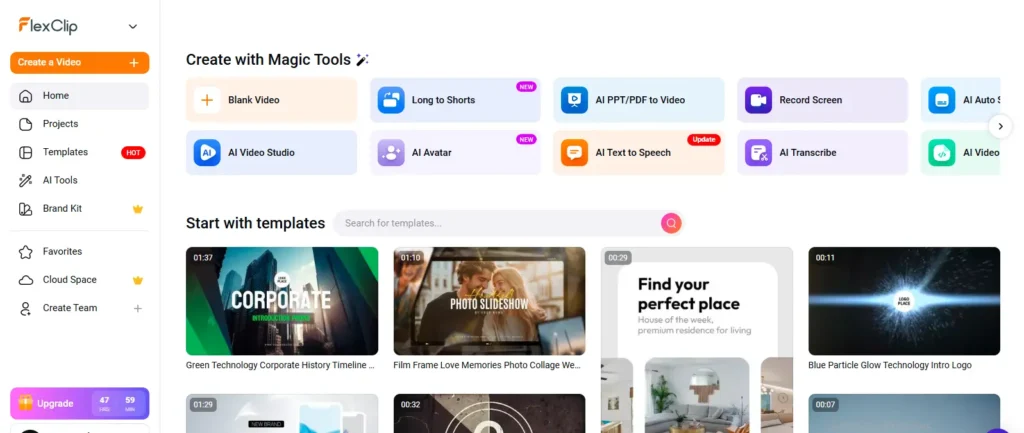
1. AI Text-to-Video Generator ⭐⭐⭐⭐⭐
One of FlexClip’s biggest selling points is its AI-powered Text-to-Video feature.
Instead of manually searching for stock footage, writing captions, adding transitions, and selecting background music, you simply describe your idea.
For example:
“Create a promotional video for a coffee shop.”
or
“Generate an Instagram Reel explaining the benefits of email marketing.”
Within a short time, FlexClip creates:
- Video scenes
- Text overlays
- Background music
- Stock footage
- Basic transitions
- Animated titles
It isn’t perfect.
Think of it as hiring an intern who prepares the first draft rather than a professional editor delivering the final masterpiece.
You’ll still want to:
- Replace generic stock clips
- Improve the text
- Adjust timing
- Change music
- Add branding
But instead of starting from an empty timeline, you begin with roughly 70–80% of the work already done.
That dramatically reduces production time.
Our Rating
⭐⭐⭐⭐⭐ 9.2/10
2. Massive Template Library
If AI isn’t your preferred workflow, FlexClip offers one of the largest template collections among browser-based editors.
Templates cover almost every industry.
You’ll find designs for:
- Real estate
- Restaurants
- SaaS companies
- Healthcare
- Education
- YouTube
- TikTok
- Corporate presentations
- Product launches
- Events
- Holiday campaigns
- Ecommerce
Rather than looking like generic PowerPoint slides, many templates feel modern and professionally animated.
The biggest advantage?
Everything is customizable.
You can replace:
- Images
- Videos
- Fonts
- Colors
- Logos
- Animations
- Music
without rebuilding the project.
For agencies producing videos at scale, this saves hours every week.
What We Liked
✔ Professional designs
✔ Excellent variety
✔ Easy customization
What Could Improve
Some older templates look slightly dated, although newer additions are significantly better.
Rating
⭐⭐⭐⭐⭐ 9.4/10
3. Browser-Based Editing (No Installation Required)
One feature that’s easy to overlook is the fact that FlexClip runs entirely in your browser.
That means:
- No downloads
- No software updates
- No compatibility issues
- No worrying about Windows vs. macOS
Simply open your browser, log in, and continue working.
For freelancers who switch between multiple computers—or anyone working remotely—this convenience is surprisingly valuable.
Projects are automatically saved in the cloud, making it easier to resume editing from another device.
Compared with traditional editing software that can consume significant storage space and system resources, FlexClip feels lightweight and accessible.
Rating
⭐⭐⭐⭐⭐ 9.5/10
4. AI Script Writer
Creating a video is only half the challenge.
Knowing what to say is often harder.
FlexClip includes an AI Script Writer that generates scripts from a topic or prompt.
For example:
Prompt:
“Write a 60-second YouTube Short explaining SEO.”
The AI produces:
- Opening hook
- Main talking points
- Closing statement
Is it ready to publish?
Usually not.
Like most AI writing tools, you’ll want to edit the wording to match your own tone and expertise.
However, it solves one of the biggest problems creators face:
The blank page.
Instead of spending 30 minutes brainstorming, you already have a draft to improve.
For marketers creating repetitive content, that’s a meaningful productivity boost.
Rating
⭐⭐⭐⭐ 8.4/10
5. AI Image Generator
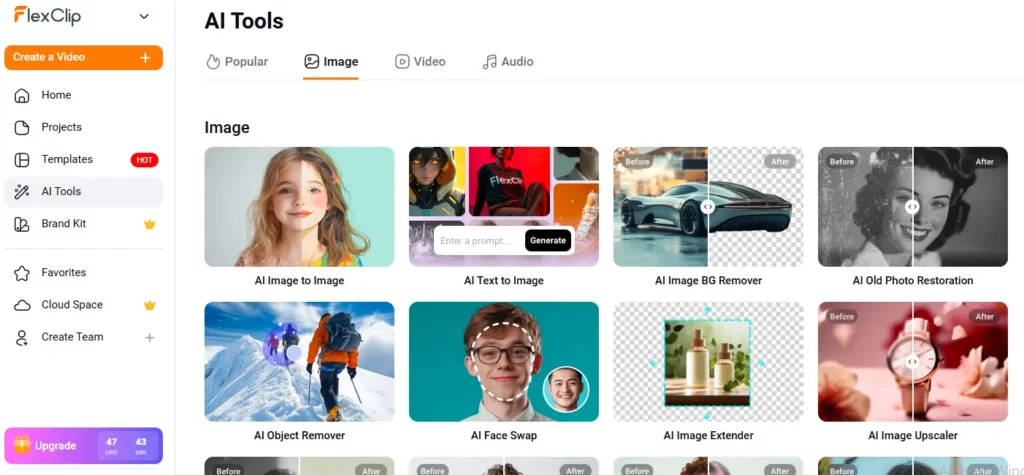
FlexClip has expanded beyond video editing by integrating AI image generation.
This allows users to create original visuals directly inside the editor instead of relying entirely on stock libraries.
You can generate:
- Blog illustrations
- Product mockups
- Concept art
- Marketing graphics
- Social media visuals
The quality is comparable to many mainstream AI image generators for everyday marketing needs.
It’s particularly useful when you need a unique visual that doesn’t exist in stock photo libraries.
While designers may still prefer dedicated AI art platforms for advanced creative work, having image generation built into the same workflow reduces the need to switch between multiple applications.
Rating
⭐⭐⭐⭐ 8.8/10
6. Automatic Subtitle Generator
Video without captions often loses viewers.
Many people watch content with the sound turned off, especially on mobile devices.
FlexClip’s Auto Subtitle feature helps solve that problem.
Upload a video.
The platform automatically detects spoken dialogue and generates captions.
You’ll still need to review them because:
- Names can be incorrect.
- Technical terminology may be misinterpreted.
- Punctuation sometimes needs refinement.
However, even with minor editing, automatic subtitles save a considerable amount of time compared with typing every caption manually.
For creators producing tutorials, webinars, interviews, or educational content, this feature alone can justify using an AI editor.
Rating
⭐⭐⭐⭐⭐ 9.1/10
7. Stock Video, Images & Music Library
One of FlexClip’s strongest advantages is its integrated media library.
Instead of searching multiple websites for royalty-free assets, users can browse millions of resources without leaving the editor.
Available assets include:
- HD videos
- 4K clips
- Icons
- Photos
- Illustrations
- Motion graphics
- Background music
- Sound effects
This dramatically simplifies the production workflow.
Instead of downloading assets, uploading them, and organizing folders, everything happens within the editor.
For businesses producing promotional content every week, this workflow improvement is significant.
Tip: Before using stock music in monetized content, review the applicable licensing terms to ensure they match your intended use.
Rating
⭐⭐⭐⭐⭐ 9.3/10
8. Drag-and-Drop Timeline Editor
At its core, FlexClip remains a traditional timeline-based editor.
The difference is that the interface has been simplified.
You’ll find common editing tools such as:
- Split clips
- Trim videos
- Crop footage
- Rotate media
- Resize elements
- Add transitions
- Insert animations
- Overlay text
- Adjust playback speed
- Apply filters
The learning curve is minimal.
Even users with no prior editing experience can become comfortable after a short period of exploration.
That simplicity is one of FlexClip’s biggest strengths.
Professional editors may find the timeline limiting for complex, multi-layered projects, but beginners will appreciate how approachable it feels.
Our Mid-Review Verdict
After evaluating FlexClip’s core capabilities, it’s clear that the platform isn’t trying to compete with professional editing suites like Adobe Premiere Pro or DaVinci Resolve.
Instead, it focuses on a different audience: creators who value speed, simplicity, and AI-assisted workflows over advanced cinematic editing.
For bloggers, marketers, educators, freelancers, and small businesses, that trade-off often makes sense. The platform removes much of the technical friction from video production, allowing users to publish content more consistently without a steep learning curve.
FlexClip Performance, Pricing, Pros & Cons
After exploring FlexClip’s core features, the next question is whether it performs well enough for regular content creation. A feature-rich platform means very little if it’s slow, unreliable, or frustrating to use every day.
In this section, we’ll examine FlexClip’s real-world performance, pricing plans, overall value for money, and the advantages and limitations you should know before subscribing.
Performance Review: Does FlexClip Keep Up?
Performance is one of the biggest reasons creators switch video editors. If rendering takes forever or the editor constantly freezes, productivity suffers.
Because FlexClip is entirely cloud-based, its performance depends on two factors:
- Your internet connection
- The complexity of your project
For lightweight projects such as Instagram Reels, TikTok videos, YouTube Shorts, or product advertisements, the editor feels responsive and smooth. Projects load quickly, media uploads are straightforward, and basic editing actions such as trimming, splitting, or adding transitions happen almost instantly.
As projects become larger, with longer timelines, higher-resolution footage, and multiple assets, you may notice slower rendering and export times. That’s expected for browser-based software and isn’t unique to FlexClip.
Editor Responsiveness
★★★★★ 9.3/10
The interface is clean and well-organized. Most editing tools are only one or two clicks away, making navigation simple even for first-time users.
Unlike many browser-based editors that feel cluttered, FlexClip maintains a balanced workspace that doesn’t overwhelm beginners.
Video Export Quality
Export quality is another area where FlexClip performs well.
Paid plans support exports up to 1080p Full HD, producing videos suitable for:
- YouTube
- TikTok
- Business presentations
- Marketing campaigns
For most creators, 1080p remains the ideal balance between file size and visual quality.
The exported videos maintain sharp text, smooth transitions, and good overall image quality. Compression is generally handled well, although heavily animated projects may take longer to process.
Export Quality Rating
★★★★★ 9.2/10
AI Generation Speed
One of FlexClip’s biggest strengths is reducing the time spent creating a first draft.
Instead of building every scene manually, AI generates:
- Scene suggestions
- Stock footage
- Titles
- Basic animations
- Background music
Depending on the complexity of the request, AI-generated drafts are typically ready within a short period, allowing creators to move directly into editing rather than starting from scratch.
The final result still benefits from human refinement, but the initial time savings can be substantial, especially for agencies or marketers producing multiple videos each week.
AI Workflow Rating
★★★★☆ 9.0/10
Ease of Learning
This is arguably FlexClip’s strongest category.
Professional software like Adobe Premiere Pro or DaVinci Resolve often requires weeks of learning before users feel comfortable.
FlexClip is different.
Most beginners can understand the interface within their first session because everything follows a familiar drag-and-drop workflow.
You don’t need prior video editing experience to create polished content.
For bloggers, freelancers, and business owners who simply want videos without becoming professional editors, this simplicity is a major advantage.
Learning Curve Rating
★★★★★ 9.8/10
Collaboration Features
If you’re part of a marketing team or agency, collaboration matters.
FlexClip’s Business plan includes features such as:
- Shared workspaces
- Team access
- Brand consistency
- Cloud project management
While it doesn’t replace dedicated project management tools, it provides enough functionality for small teams producing marketing content together.
For solo creators, these features may not be essential.
For agencies, they can streamline production workflows.
Collaboration Rating
★★★★☆ 8.8/10
Overall Productivity
Perhaps the biggest reason creators choose FlexClip isn’t because it has the most advanced editing tools.
It’s because it helps them publish content faster.
Instead of spending hours building videos from scratch, users can combine AI assistance, templates, stock media, and simple editing tools to significantly reduce production time.
For businesses publishing videos consistently, that efficiency often matters more than advanced editing features.
Productivity Rating
★★★★★ 9.5/10
FlexClip Pricing (2026)
Pricing has shifted slightly over the past year and varies a bit by billing cycle and region, so treat these as the current baseline and confirm exact figures on FlexClip’s own pricing page before you buy.
Free Plan — $0/month
- 720p exports with a visible FlexClip watermark
- Max 12 saved projects
- Videos capped at 10 minutes
- 1 stock video + 1 stock audio track per project
- A small monthly AI credit allowance
This is enough to evaluate the editor and its templates. It is not enough to publish anything you care about, the watermark shows up on your very first export, which is usually the moment people either upgrade or start comparing FlexClip to CapCut’s free (watermark-free) plan.
Plus Plan — roughly $11.99–$19.99/month (billed annually)
- 1080p exports, no watermark, no length limit
- 5 stock assets per project
- 30GB cloud storage, 100GB export storage
- ~300 AI credits/month (3,600/year)
This is the plan most solo creators and small businesses land on.
Business Plan — $19.99-$29.99/month (billed annually)
- Unlimited or near-unlimited stock media
- ~600 AI credits/month
- Larger storage allocation, priority support, team collaboration features
Standalone AI Credits
FlexClip also sells AI credits separately (roughly $19.99 for 300 credits) for people who mainly want the generation tools without a full subscription. There’s typically a 7-day money-back guarantee on new subscriptions.
The credit math nobody puts in the pricing table
This is the part that catches people off guard. FlexClip’s Plus plan gives you around 300 AI credits a month. That sounded generous when the AI generator ran on a single, lighter-weight text-to-video engine. It sounds a lot less generous now that the platform routes generation through heavier models like Veo 3, Kling, and Hailuo, each of which consumes noticeably more credits per clip than the older engine did. Reviewers on Capterra and AppSumo repeatedly flag this as the biggest surprise post-upgrade: the credit allowance was sized for lighter AI use, not for someone generating multiple AI video clips a day with the newest models.
Practical takeaway: if your workflow is “template + my own footage + light AI touches (subtitles, a background swap, occasional generation),” 300 credits a month is plenty. If your workflow leans on AI-generated video clips from Veo 3 or Kling specifically, budget for standalone credit top-ups or expect to hit the ceiling mid-month.
FlexClip vs. its closest competitors on price
| Tool | Free plan | Cheapest paid tier | Watermark on free plan |
|---|---|---|---|
| FlexClip | Yes, limited | ~11.99/mo | Yes |
| CapCut | Yes | Free (paid tier optional) | No |
| Canva | Yes, limited | $12.99/mo | Yes (on some exports) |
| VEED.io | Yes, limited | ~$19–24/mo | Yes |
| Filmora | Trial only | ~$29.99/mo (or one-time license) | Yes on trial |
FlexClip lands in the middle of the pack, cheaper than VEED and Filmora, more expensive on a strict dollar basis than CapCut, but with a broader AI toolkit and template library than CapCut offers.
Is FlexClip Worth the Price?
Compared with many competing AI video editors, FlexClip delivers solid value.
Instead of paying separately for:
- Stock footage
- Stock images
- Video editing software
- AI video generation
- AI script writing
- Subtitle software
many of these capabilities are included within a single platform.
For creators producing content regularly, consolidating these tools into one workflow can save both time and subscription costs.
Pros
After evaluating FlexClip’s features, performance, and usability, these are the areas where it stands out.
Beginner-Friendly Interface
One of the easiest AI video editors to learn.
Browser-Based Platform
No downloads, updates, or installation required.
Excellent AI Tools
Text-to-video, AI scripts, subtitles, image generation, and other AI-powered features help speed up content creation.
Large Template Library
Thousands of professionally designed templates suitable for different industries.
Huge Stock Media Collection
Millions of images, videos, icons, music tracks, and animations available directly inside the editor.
Fast Content Creation
Perfect for creators publishing videos every week.
Affordable Pricing
Competitive plans compared with many other AI video editing platforms.
Cloud Saving
Projects are automatically stored online, reducing the risk of losing work.
Cons
No software is perfect, and FlexClip has limitations worth considering.
Limited Advanced Editing
Professional editors may miss features such as complex multi-layer timelines, advanced masking, or cinematic color grading.
AI Still Requires Editing
AI-generated videos provide a strong starting point but often benefit from manual adjustments to improve pacing, visuals, and messaging.
Browser Dependency
Since FlexClip runs online, a stable internet connection is essential for smooth editing and exporting.
Heavy Projects Take Longer
Large projects with high-resolution assets and complex animations naturally require more rendering time.
Free Plan Restrictions
The free version includes watermarks and usage limits, which many creators will eventually outgrow.
AITestedGuide Final Performance Score
| Category | Score |
| Ease of Use | 9.8 / 10 |
| AI Features | 9.0 / 10 |
| Editing Experience | 8.8 / 10 |
| Export Quality | 9.2 / 10 |
| Templates | 9.4 / 10 |
| Performance | 9.3 / 10 |
| Collaboration | 8.8 / 10 |
| Value for Money | 9.3 / 10 |
Overall AITested Score: 9.1 / 10
FlexClip Comparisons & Best Alternatives
Choosing the right AI video editor isn’t just about finding the tool with the most features—it’s about finding the one that fits your workflow.
Some creators need quick social media videos.
Others need professional marketing campaigns.
Some want powerful AI automation.
Others simply want the easiest editor available.
So, how does FlexClip compare with the biggest names in AI video editing?
Let’s find out.
FlexClip vs Canva
Canva has become one of the world’s most popular design platforms, and over the past few years, its video editing capabilities have improved significantly.
Both platforms are beginner-friendly, cloud-based, and packed with templates.
However, they serve slightly different audiences.
| Feature | FlexClip | Canva |
| AI Video Generation | ⭐⭐⭐⭐⭐ | ⭐⭐⭐⭐ |
| Video Editing | ⭐⭐⭐⭐⭐ | ⭐⭐⭐⭐ |
| Graphic Design | ⭐⭐⭐ | ⭐⭐⭐⭐⭐ |
| Templates | ⭐⭐⭐⭐⭐ | ⭐⭐⭐⭐⭐ |
| Stock Library | ⭐⭐⭐⭐⭐ | ⭐⭐⭐⭐ |
| Learning Curve | Very Easy | Very Easy |
| Best For | Video Creation | All-in-One Design |
Choose FlexClip if:
- Video is your primary content format.
- You create YouTube videos regularly.
- You publish Instagram Reels frequently.
- You need AI-powered video generation.
Choose Canva if:
- You create presentations.
- You design social media graphics.
- You work with PDFs and documents.
- You need a complete design ecosystem.
Verdict
If your business revolves around video marketing, FlexClip is the stronger choice.
If your work includes presentations, graphics, infographics, documents, and social media posts, Canva offers a broader creative toolkit.
FlexClip vs CapCut
CapCut has exploded in popularity thanks to TikTok.
It offers an impressive collection of editing features while remaining free for many users.
However, FlexClip and CapCut target different workflows.
| Feature | FlexClip | CapCut |
| Browser Editing | ✅ | Limited |
| Desktop App | No | Yes |
| Mobile App | No | Excellent |
| AI Video | Excellent | Good |
| Templates | Excellent | Excellent |
| Social Media Editing | Excellent | Excellent |
| Long-form Editing | Better | Good |
| Ease of Use | Excellent | Excellent |
CapCut Advantages
- Excellent mobile editing
- Popular TikTok templates
- Strong short-form editing
- Powerful desktop application
FlexClip Advantages
- Better browser experience
- Faster AI workflows
- More business-oriented templates
- Better marketing content creation
Verdict
Creators who primarily edit videos on their smartphones will likely prefer CapCut.
Businesses, marketers, bloggers, and agencies that work on desktop browsers may find FlexClip more productive.
FlexClip vs VEED.io
VEED.io is probably FlexClip’s closest competitor.
Both platforms focus on online video editing with AI-powered tools.
Here’s how they compare.
| Feature | FlexClip | VEED |
| AI Features | ⭐⭐⭐⭐⭐ | ⭐⭐⭐⭐⭐ |
| Subtitle Generator | Excellent | Excellent |
| Interface | Simpler | More Advanced |
| Templates | Larger Library | Smaller Library |
| Collaboration | Good | Excellent |
| Video Editing | Easy | Moderate |
Choose VEED if:
- You collaborate with larger teams.
- You need advanced subtitle customization.
- You create webinars and interviews regularly.
Choose FlexClip if:
- You want a simpler interface.
- You rely heavily on templates.
- You prioritize speed over advanced editing.
Verdict
Both are excellent.
VEED offers slightly more advanced editing capabilities, while FlexClip provides a gentler learning curve and faster content creation for beginners.
FlexClip vs InVideo
InVideo has become one of the biggest AI video creation platforms thanks to its automation capabilities.
Both products target marketers and content creators.
| Feature | FlexClip | InVideo |
| AI Video | Excellent | Excellent |
| Templates | Excellent | Excellent |
| Text-to-Video | Excellent | Excellent |
| Stock Library | Huge | Huge |
| Editing Flexibility | Better | Slightly Limited |
| Ease of Use | Excellent | Good |
FlexClip Wins
- Cleaner interface
- Easier navigation
- Better editing workflow
- Less overwhelming for beginners
InVideo Wins
- Stronger AI automation
- Excellent script-to-video capabilities
- Enterprise-friendly workflows
Verdict
If you’re new to AI video editing, FlexClip is easier to master.
If you’re producing large volumes of AI-generated content and want extensive automation, InVideo is worth considering.
FlexClip vs Adobe Express
Adobe Express is Adobe’s answer to Canva and browser-based content creation.
While it shares some similarities with FlexClip, its focus is broader than video editing alone.
| Feature | FlexClip | Adobe Express |
| AI Video | ⭐⭐⭐⭐⭐ | ⭐⭐⭐⭐ |
| Templates | ⭐⭐⭐⭐⭐ | ⭐⭐⭐⭐ |
| Graphic Design | ⭐⭐⭐ | ⭐⭐⭐⭐⭐ |
| Branding Tools | ⭐⭐⭐⭐ | ⭐⭐⭐⭐⭐ |
| Beginner Friendly | ⭐⭐⭐⭐⭐ | ⭐⭐⭐⭐ |
Verdict
Adobe Express works best for users already invested in Adobe’s ecosystem.
For creators primarily producing videos, FlexClip offers a more specialized experience.
FlexClip vs Adobe Premiere Pro
This comparison appears frequently in search results, but the truth is these tools serve different audiences.
| Feature | FlexClip | Premiere Pro |
| Learning Curve | Easy | Very Difficult |
| Installation | Browser | Desktop Software |
| AI Features | Excellent | Growing |
| Motion Graphics | Basic | Professional |
| Multi-track Editing | Limited | Unlimited |
| Color Grading | Basic | Professional |
| Film Production | No | Yes |
Premiere Pro is Better For
- Professional filmmakers
- Video production companies
- Television production
- Advanced editors
FlexClip is Better For
- Bloggers
- Agencies
- Freelancers
- Social media creators
- Small businesses
Verdict
Comparing these platforms is a bit like comparing a smartphone camera to a professional cinema camera.
Premiere Pro offers unmatched creative control, but it comes with a steep learning curve and a higher time investment.
FlexClip focuses on helping everyday creators produce quality videos quickly.
Which FlexClip Alternative Should You Choose?
Every creator has different priorities.
Here’s our recommendation based on common use cases.
| If You Want… | Best Choice |
| Best Beginner Editor | ⭐ FlexClip |
| Best Graphic Design Platform | Canva |
| Best Mobile Editing | CapCut |
| Best Professional Editing | Premiere Pro |
| Best Team Collaboration | VEED |
| Best AI Automation | InVideo |
| Best Adobe Integration | Adobe Express |
Who Should Use FlexClip?
After comparing FlexClip with the biggest competitors, it’s clear that the platform excels in specific scenarios.
FlexClip is ideal for:
- Bloggers creating video summaries of articles
- Affiliate marketers producing product reviews
- YouTubers publishing tutorials
- Agencies creating client content
- Freelancers offering video editing services
- Ecommerce businesses promoting products
- Coaches and consultants building educational videos
- Course creators producing lessons
- Small businesses running social media campaigns
Its combination of AI assistance, templates, and browser-based editing makes it particularly attractive for users who need speed and simplicity over advanced cinematic control.
When FlexClip May Not Be the Best Choice
FlexClip is an excellent all-rounder, but it isn’t the perfect solution for everyone.
You may want to consider an alternative if:
- You produce feature-length documentaries.
- You require advanced visual effects.
- You need Hollywood-level color grading.
- You work extensively with multi-camera editing.
- You rely on highly complex motion graphics.
In those situations, professional editing software such as Premiere Pro or DaVinci Resolve offers greater flexibility.
Final Thoughts Before Our Verdict
After comparing FlexClip against today’s leading video editing platforms, one thing becomes clear:
FlexClip isn’t trying to beat every competitor in every category.
Instead, it focuses on delivering an experience that’s fast, approachable, and practical for the majority of creators. It strikes a balance between AI automation and manual editing, making it a compelling option for bloggers, marketers, educators, freelancers, and small businesses who need professional-looking videos without the complexity of traditional editing suites.
Its biggest strengths are ease of use, a rich template ecosystem, integrated AI features, and a workflow designed to help users publish content faster.
Frequently Asked Questions
Is FlexClip free to use?
Yes. FlexClip offers a free plan that allows you to create and edit videos without paying. However, the free version comes with limitations such as watermarked exports, restricted cloud storage, limited AI credits, and access to fewer premium assets.
If you’re simply exploring the platform or creating personal projects, the free plan is a good starting point. For professional work, upgrading to a paid plan is usually worthwhile.
Is FlexClip good for beginners?
Absolutely.
FlexClip is one of the easiest video editors to learn because everything happens inside your browser and the interface is clean and intuitive.
Unlike professional editing software that can take weeks to master, most users can begin creating videos within their first session.
If you’ve never edited a video before, FlexClip is one of the safest places to start.
Can FlexClip create AI videos?
Yes.
FlexClip includes several AI-powered tools that help automate video creation, including:
- AI Text-to-Video
- AI Script Writer
- AI Image Generator
- AI Text-to-Speech
- AI Subtitle Generator
These tools significantly reduce production time, although you’ll often achieve the best results by reviewing and refining the AI-generated output before publishing.
Does FlexClip have a watermark?
Yes, but only on the free plan.
Videos exported using the free version include a FlexClip watermark.
Paid subscriptions remove the watermark and unlock higher export quality along with additional premium features.
Can I use FlexClip for YouTube?
Yes.
FlexClip supports common YouTube formats, including:
- Standard YouTube videos
- YouTube Shorts
- Tutorials
- Product reviews
- Educational content
- Marketing videos
It also offers ready-made templates sized specifically for YouTube content.
Is FlexClip better than Canva?
It depends on your needs.
Choose FlexClip if your primary focus is video production and AI-powered editing.
Choose Canva if you need an all-in-one design platform for presentations, graphics, documents, and social media posts in addition to basic video editing.
Both are excellent platforms, but FlexClip offers a more video-focused workflow.
Is FlexClip better than CapCut?
CapCut is an excellent choice for creators who edit primarily on mobile devices or produce TikTok content.
FlexClip is generally a better fit for users working from desktop browsers, especially bloggers, marketers, agencies, and businesses creating a wider variety of video formats.
Can FlexClip replace Adobe Premiere Pro?
For most everyday creators, yes.
For professional filmmakers and advanced editors, no.
Adobe Premiere Pro remains the better option for complex productions involving multi-track editing, advanced color grading, visual effects, and detailed timeline control.
FlexClip focuses on speed and simplicity rather than professional post-production.
Does FlexClip work on Mac and Windows?
Yes.
Since FlexClip runs entirely in your web browser, it works on:
- Windows
- macOS
- Chromebooks
- Linux (through supported browsers)
There is no software installation required.
Is FlexClip good for businesses?
Yes.
Small businesses, marketing agencies, ecommerce stores, educators, and freelancers can all benefit from FlexClip’s combination of templates, AI features, stock media, and browser-based collaboration.
It helps reduce production time while maintaining professional-looking results.
Can I use my own videos and images?
Yes.
FlexClip allows you to upload your own:
- Videos
- Photos
- Logos
- Audio files
- Fonts
This makes it easy to maintain brand consistency and create personalized marketing content.
Does FlexClip support team collaboration?
Yes.
Business plans include collaboration features that allow teams to manage projects more efficiently.
This is particularly useful for agencies and marketing departments working on shared content.
Is FlexClip worth paying for?
If you create videos regularly, the answer is yes.
The combination of AI tools, templates, stock assets, and browser-based editing can save a significant amount of production time compared with creating everything manually.
For occasional users, the free plan may be enough.
For businesses and content creators publishing videos every week, a paid subscription offers considerably more value.
What are the best alternatives to FlexClip?
Some of the strongest alternatives include:
- Canva
- CapCut
- VEED.io
- InVideo
- Adobe Express
- Adobe Premiere Pro
- Descript
- Pictory
Each platform has its own strengths depending on your workflow and editing requirements.
Final Verdict
Is FlexClip Worth It in 2026?
After evaluating its features, AI capabilities, ease of use, pricing, and overall workflow, FlexClip proves to be one of the strongest browser-based AI video editors currently available.
It isn’t designed to replace professional editing software used in film production—and it doesn’t try to.
Instead, FlexClip focuses on helping everyday creators produce professional-looking videos quickly without the steep learning curve associated with traditional editing tools.
That makes it particularly valuable for:
- Bloggers
- Affiliate marketers
- Freelancers
- Agencies
- Small businesses
- Educators
- YouTubers
- Social media managers
- Ecommerce brands
The combination of AI-powered automation, extensive templates, integrated stock libraries, and an intuitive editing experience allows users to spend less time editing and more time creating content.
While advanced editors may eventually need software with deeper customization and professional-grade features, the majority of creators will find that FlexClip offers everything required to produce high-quality marketing and social media videos efficiently.
Who Should Buy FlexClip?
Buy FlexClip if you:
- Create content every week.
- Need videos for marketing.
- Want AI to speed up production.
- Prefer browser-based software.
- Have little or no editing experience.
- Need templates that are ready to customize.
Consider another editor if you:
- Produce feature-length films.
- Need advanced visual effects.
- Require professional color grading.
- Work extensively with multi-camera timelines.
Our Final Rating
| Category | Rating |
| Ease of Use | ⭐ 9.8 / 10 |
| AI Features | ⭐ 9.0 / 10 |
| Templates | ⭐ 9.4 / 10 |
| Editing Experience | ⭐ 8.8 / 10 |
| Export Quality | ⭐ 9.2 / 10 |
| Performance | ⭐ 9.3 / 10 |
| Value for Money | ⭐ 9.3 / 10 |
Overall AITested Score: 9.1 / 10
Bottom Line
FlexClip successfully delivers on its promise of making video creation faster and more accessible. Its AI-powered workflow, user-friendly interface, and extensive template library make it an excellent option for creators who want professional results without spending months learning complex editing software.
If your goal is to create engaging marketing videos, social media content, tutorials, or promotional videos quickly, FlexClip is one of the best browser-based solutions available today.
Ready to Find More AI Tools?
If FlexClip isn’t the perfect fit for your workflow, don’t make a decision just yet.
At AITestedGuide, we test and compare the latest AI tools to help you choose the right software for your specific needs, whether you’re creating videos, writing content, designing graphics, or automating your business.
Before you subscribe, explore these in-depth guides:
- ChatGPT vs Claude: Which AI Assistant Is Better in 2026?
- 10 Best AI Tools for Content Creators in 2026
We regularly publish hands-on reviews, comparisons, tutorials, and industry updates to help creators, marketers, freelancers, and businesses make smarter software decisions.