

Disclosure: AI Tested Guide may earn a commission from some links on this page, at no extra cost to you. Clipping Factory is made by Clipping Joint, which is owned by AI Tested Guide’s founder.
How to auto-clip GTA 6 highlights: the quick answer
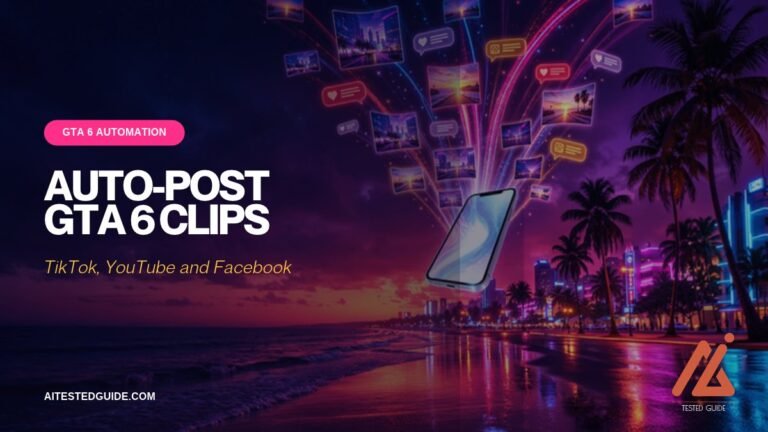
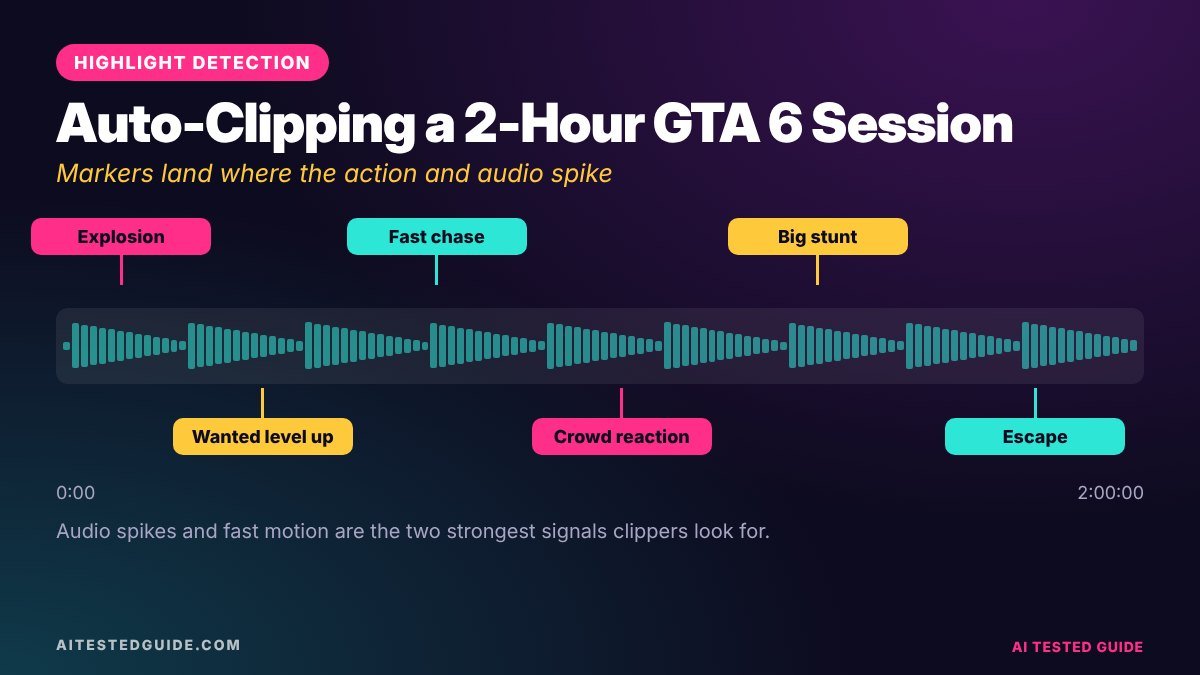
To auto-clip GTA 6 highlights, you record long sessions, upload them to an AI clipper, and let it find and cut the best moments into vertical clips. The AI looks for signs that something exciting happened: sudden audio spikes, fast motion, your voice reacting and big on-screen changes. You review its picks, add hooks, and post.
Done right, auto-clipping turns a three-hour session into a day’s worth of clips in minutes rather than hours. This guide explains how it works, the exact workflow, how to record so the AI does better, and the mistakes that waste its output.
Why auto-clipping matters for GTA 6
GTA 6 is built for clip-worthy chaos: police chases, ragdoll crashes, NPC reactions and moments nobody planned. The problem is that they’re scattered through hours of normal play. Finding them by hand means watching your footage back at close to real time.
| Clipping by hand | Auto-clipping with AI | |
|---|---|---|
| Time to find moments in a 3-hour session | Hours of scrubbing | Minutes of processing plus a quick review |
| Clips per session | Limited by your time | Limited mainly by how many good moments happened |
| Consistency | Depends on your energy | Same process every day |
| Best at | Subtle, story-driven moments | Loud, fast, obvious highlights |
The winning approach is both: let AI do the first pass, then use your judgement to pick the keepers.
How AI spots a good moment
Auto-clippers combine several signals. Knowing them helps you record footage the AI understands:
| Signal | What the AI notices | Example in GTA 6 |
|---|---|---|
| Audio spikes | Sudden jumps in loudness | Explosions, crashes, gunfire, sirens |
| Voice reactions | Your laughter, shouting, “no way” | You yelling as the car flips |
| Speech content | What you say, via transcription | “Did that just happen?” |
| Fast motion | Rapid changes between frames | Chases, jumps, ragdoll falls |
| Scene changes | Big visual shifts | Wanted level jumps, mission fail screens |
Different tools weight these differently. Some lean heavily on speech, which is why talking while you play makes such a difference.
The auto-clipping workflow, step by step
- Record long, clean sessions. Use a capture card with OBS, or stream and download your recordings. Our How to Record GTA 6 Gameplay on PS5 and Xbox guide covers both.
- Turn the in-game radio off. Licensed songs can get clips muted, and loud music confuses audio-based detection.
- Upload the full recording to your auto-clipper.
- Set the output: vertical 9:16, clip length around 15 to 45 seconds, captions on if available.
- Review the suggestions. Keep the ones you’d send to a friend. Delete the rest without guilt.
- Polish the keepers: tighten the first second, add an on-screen hook, fix caption spellings.
- Schedule them across TikTok, Shorts, Reels and Facebook.
How to record so the AI finds more moments
- Talk while you play. React out loud. Your voice is one of the strongest highlight signals.
- Record game and mic on separate tracks in OBS. Cleaner audio means better detection and easier editing.
- Keep the HUD tidy. Vertical crops cut the edges, so clutter in the middle of the screen gets in the way.
- Play for moments, not just progress. Try chases, stunts and experiments. Story missions produce fewer short clips, and isolated cutscenes can’t be posted under Rockstar’s policy anyway.
- Record at 1080p or higher. Vertical clips crop your footage, so extra resolution keeps them sharp.
Choosing an auto-clipper
| Option | How it works | Best for |
|---|---|---|
| Clipping Factory | Set up for you by Clipping Joint, one-time payment | High volume with minimal effort |
| Opus Clip | Self-serve web app with suggested clips | Creators who want to run it themselves |
| Manual with CapCut | You find moments, CapCut does captions | Low volume or very specific edits |
For a deeper comparison, read Opus Clip vs CapCut vs Clipping Factory for GTA 6 Clips. We also tested AI clipping on podcasts in our Riverside Agents Review: Can AI Really Produce Your Podcast?, and the lessons carry over.
Reviewing AI picks: a 5-question filter
Run every suggested clip through these five questions. If it fails two, delete it.
- Does something happen in the first two seconds?
- Would someone who’s never played GTA understand it?
- Is there a clear payoff, like a crash, a reaction or a twist?
- Is the action visible in a vertical crop?
- Would I send this to a friend?
Turning one highlight into several clips
Good moments are worth more than one post. A single chase can become:
- The ending only, 10 to 15 seconds
- The whole chase sped up, 25 to 30 seconds
- The NPC reactions in the background
- A slow-motion replay of the crash
AI usually catches the main moment. Spotting the extra angles is where your eye adds value.
Mistakes that waste auto-clipping
- Posting everything the AI finds. Volume matters, but weak clips drag your page’s averages down.
- Silent recording sessions. No voice means fewer and weaker suggestions.
- Leaving music on. Copyright claims and confused detection.
- Skipping the hook. AI cuts the moment, but you still need to tell people why to watch.
- Clipping other people’s streams without permission. Always get permission first.

What to expect from a real 3-hour session
Auto-clipping isn’t magic, and it helps to know what a typical result looks like. From a three-hour GTA 6 session with commentary, expect roughly this pattern:
| Stage | What happens | Your time |
|---|---|---|
| Upload and processing | The AI scans the whole recording | Near zero, it runs in the background |
| Suggestions | A list of candidate clips, some strong, many average | None yet |
| Review | You keep the best handful and delete the rest | 15 to 20 minutes |
| Polish | Hooks, caption fixes, final trims | A few minutes per clip |
| Scheduling | Clips spread across the day and platforms | 10 minutes |
The exact numbers vary with how eventful your session was. A quiet session of driving between missions gives fewer keepers than an hour of chaos. If you want more clips, play for more moments.
Settings checklist inside your auto-clipper
- Aspect ratio: 9:16 vertical for TikTok, Shorts and Reels.
- Clip length: aim for 15 to 45 seconds. Shorter clips usually get better completion.
- Captions: on, then fix character and place names before posting.
- Face or game layout: if you use a webcam, choose a split layout so your reaction and the game both show.
- Language: set it correctly so transcription and captions work.
- Branding: add your page name or watermark small, out of the action.
A daily auto-clipping routine
| When | Task |
|---|---|
| Evening | Play and record, talking through the session |
| Before bed | Upload the recording to your clipper |
| Morning | Review suggestions, keep the best, polish them |
| Morning | Schedule clips for the rest of the day |
| Weekly | Check which clips performed and adjust how you play and record |
This is how one person keeps a page posting several times a day: the AI works overnight, and your morning goes on judgement rather than scrubbing.
What auto-clippers can’t do (yet)
- Understand context. A quiet moment that’s funny because of what happened five minutes earlier is easy for you to spot and hard for AI.
- Judge taste. The AI can’t know what your audience finds funny. Your analytics can.
- Check rules. It won’t stop you posting a story spoiler or a clip with licensed music. That’s still on you.
- Write a great hook every time. Suggested titles are a starting point. Your best hooks will come from knowing your audience.
How to tell which auto-clips work
Track a few numbers for each clip after 48 hours: views, average watch time, completion rate, shares and followers gained. After two weeks, compare clips the AI picked and you posted unchanged with clips you re-cut or re-hooked. Most creators find that small human edits, like a sharper first second or a better hook, make the biggest difference.
Auto-clipping by content style
How well auto-clipping works depends on what kind of GTA 6 creator you are. Here’s what to expect for each style, and how to get more from it.
| Your style | How well AI clips it | How to help it |
|---|---|---|
| Chaos and comedy | Very well: loud, fast, obvious moments | React out loud, keep sessions eventful |
| Challenges and series | Well, if each attempt has a clear ending | Say the challenge out loud at the start of each attempt |
| Hidden details and secrets | Poorly: quiet moments with no audio spike | Say “look at this” when you find something, or note timestamps |
| Roleplay | Well, if dialogue is clear | Use a good mic so transcription catches the funny lines |
| Cinematic drives and scenery | Poorly: no clear highlight signals | Clip these by hand instead |
From AI clip to finished post: a worked example
Say the clipper hands you a 38-second clip of a chase that ends with your car landing on a boat. Here’s the polish pass:
- Trim: cut the first 9 seconds of normal driving. The clip now starts with sirens already behind you.
- Hook: add on-screen text: “I did NOT plan this landing.”
- Captions: fix “Vice city” to “Vice City” and remove a caption covering the boat.
- Ending: add a half-speed replay of the landing so the clip loops into its own payoff.
- Caption for the post: “Rate this landing out of 10 🚤”, a question that invites comments.
Five minutes of human polish on an AI cut is usually the difference between a clip that’s fine and a clip people share.
FAQ
Is auto-clipping as good as a human editor?
It’s far faster at finding obvious highlights. A quick human review of its picks still gives the best results, especially for subtle or funny moments.
How long should auto-clipped GTA 6 clips be?
Around 15 to 45 seconds works for most platforms. Shorter clips often get higher completion rates.
Can AI clip gameplay with no commentary?
Yes, using audio spikes and motion, but results are usually better when you talk while you play.
Do I need a capture card to auto-clip GTA 6?
No. You can stream and download your recordings, or use console captures, though a capture card makes long recordings easier.
Can I auto-clip other streamers’ GTA 6 streams?
Only with their permission, or as part of a campaign that explicitly allows it.
Will auto-clipping get my clips copyrighted?
The clipping itself won’t, but licensed music in the footage can. Turn the in-game radio off.
How many clips can I get from one GTA 6 session?
It depends on how eventful the session was. Chaotic sessions with commentary produce far more usable clips than quiet ones.
Can I auto-clip on my phone?
Some clippers work in a browser or app, but uploading long recordings is easier on a computer with a good connection.
Keep reading
This post is part of our GTA 6 creator series. Start with the hub guide, How to Make GTA 6 Content with AI: The Complete Creator Guide, then go deeper:
- How to Record GTA 6 Gameplay on PS5 and Xbox
- Best AI Video Editors for GTA 6 Content
- How to Turn GTA 6 Gameplay into Viral TikToks and Shorts with AI
- Opus Clip vs CapCut vs Clipping Factory for GTA 6 Clips
- How to Make Money Clipping GTA 6 Content
Related tested reviews on AI Tested Guide:
- Riverside Agents Review: Can AI Really Produce Your Podcast?
- Runway vs Kling vs Veo vs Pika: The Best AI Video Generators
- 10 Best AI Tools for Content Creators in 2026
Sources and official links
- Opus Clip
- CapCut
- OBS Studio (free recording software)
- Rockstar Games: Policy on posting copyrighted Rockstar Games material
Done-for-you auto-clipping
This is exactly what Clipping Factory does. It finds the best moments in your long GTA 6 sessions and cuts them into vertical clips automatically. It’s a one-time payment, and we set it all up for you.