
Disclosure: AI Tested Guide may earn a commission from some links on this page, at no extra cost to you. Clipping Factory is made by Clipping Joint, which is owned by AI Tested Guide’s founder.
How to auto-post GTA 6 clips: the quick answer
To auto-post GTA 6 clips, batch your clips once a day, then schedule them with each platform’s built-in scheduler or a tool that posts to several platforms at once. Space posts throughout the day instead of dumping them all at once, and spend the time you save replying to comments.
Scheduling is what lets one person keep a page posting several times a day during GTA 6 launch season without being glued to their phone. This guide covers the tools, a daily routine, platform-specific tips and the mistakes that make scheduled posts flop.
Why scheduling matters for GTA 6 creators
- Consistency. Platforms and followers both reward pages that post regularly.
- Better timing. You can post when your audience is active, not just when you finish editing.
- More time to play. Schedule once, then record your next session.
- Less burnout. Batching beats posting on the fly every few hours.
Scheduling tools
| Tool | Platforms | Cost |
|---|---|---|
| Meta Business Suite | Facebook and Instagram | Free |
| YouTube Studio | YouTube videos and Shorts | Free |
| TikTok’s scheduler (desktop) | TikTok | Free |
| Multi-platform schedulers | Several platforms from one dashboard | Free tiers and paid plans |
Start with the free built-in schedulers. Move to a multi-platform tool only when posting to three or more platforms daily starts taking real time. Check which platforms and features each tool supports on its own site, because support changes.
A daily auto-posting routine
- Morning: export the day’s clips from your editor at 1080 x 1920.
- Write captions and hashtags for all of them in one AI prompt.
- Schedule 2 to 5 clips per platform, a few hours apart.
- Evening: check comments and reply. Replies in the first hour after a post help it spread.
Caption batching prompt:
“Here are 5 GTA 6 clips: [one-line description of each]. For each, write a TikTok caption under 15 words, a YouTube Shorts title under 60 characters with ‘GTA 6’ near the start, and a Facebook caption that ends with a question. Add 3 relevant hashtags each.”
Platform tips
| Platform | What to adapt | Watch out for |
|---|---|---|
| TikTok | Short caption, trending sound kept low under game audio | Copyrighted music inside the clip itself |
| YouTube Shorts | Specific, searchable title | Vague titles like “GTA 6 moment” |
| Instagram Reels | Clean cover frame, polished captions | Other apps’ watermarks |
| Facebook Reels | Longer caption ending in a question | Posting too many near-identical clips in a row |
When to post
There’s no universal best time. Your own audience decides it. Until you have data, spread clips across the afternoon and evening in your main audience’s time zone, then check each platform’s analytics after a week or two and move your strongest clips to the times your followers are most active.
Posting the same clip everywhere: is it safe?
Posting your own original clip on several platforms is normal. A few rules keep it working:
- Upload a clean file to each platform, without another app’s watermark.
- Adapt the title and caption for each platform rather than copying them word for word.
- Don’t post the identical clip several times to the same account.
- Never schedule other creators’ clips as your own.
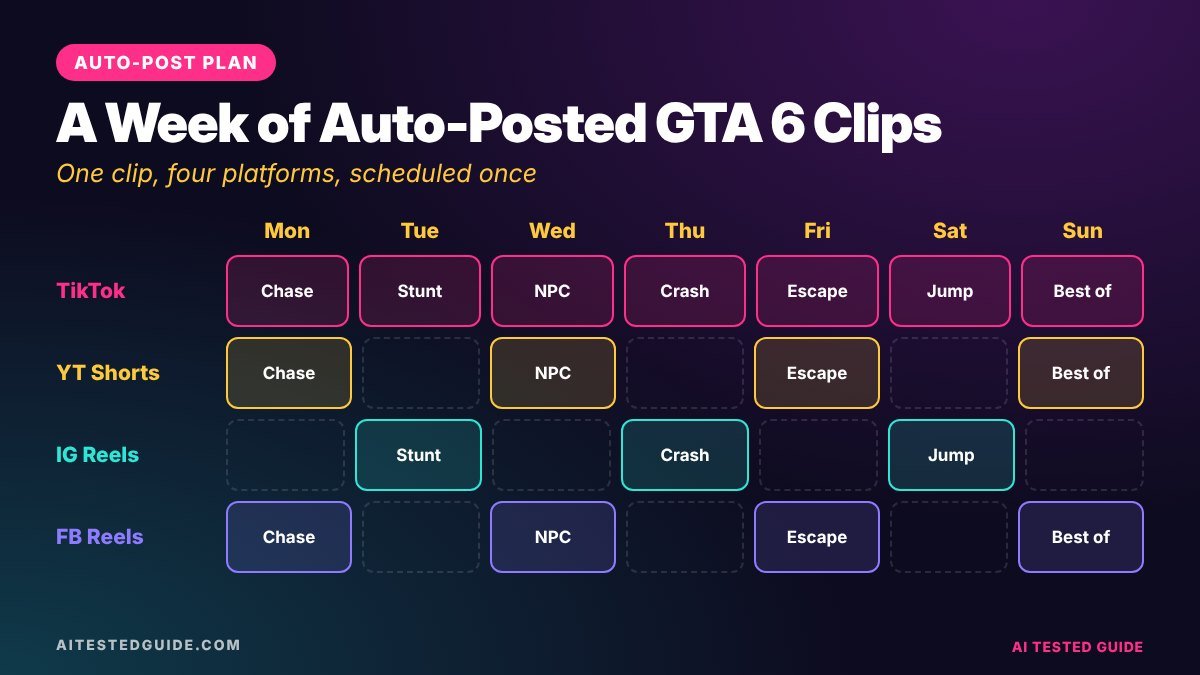
A sample weekly posting calendar
| Day | TikTok | Shorts | ||
|---|---|---|---|---|
| Mon | 3 clips | 2 clips | 2 Reels + 1 poll | 1 Reel |
| Tue | 3 clips | 2 clips | 2 Reels | 1 carousel of screenshots |
| Wed | 3 clips | 2 clips | 2 Reels + 1 question | 1 Reel |
| Thu | 3 clips | 2 clips | 2 Reels | 1 Reel |
| Fri | 3 clips (fail Friday) | 2 clips | 2 Reels + 1 meme | 1 Reel |
| Sat | 2 clips | 1 long video + 1 Short | 1 Reel | 1 wallpaper post |
| Sun | 2 clips | 1 clip | Weekly recap post | Story recap |
Treat this as a starting template, not a rule. After two weeks, cut the platforms or formats that aren’t working and put that time into the ones that are.
The batch day method
Some creators prefer one big session a week instead of a daily routine:
- Record two or three long sessions early in the week.
- Auto-clip them all in one go and pick the week’s best 20 to 30 clips.
- Caption and polish them in a single editing block with a saved style.
- Write every caption in one or two AI prompts.
- Schedule the whole week across platforms.
- Keep 20 minutes a day free for replying to comments and posting any breaking news by hand.
Batching works best once launch-week news slows down. In the first days after November 19, leave room to post timely clips by hand, because fresh discoveries spread fastest.
Scheduling mistakes to avoid
- Scheduling and forgetting. Comments still need replies, and the first hour matters most.
- Stacking posts together. Five clips in five minutes compete with each other.
- Missing breaking news. A scheduled meme can look tone-deaf next to big announcements. Check your queue on busy news days.
- Using the wrong aspect ratio. Schedulers won’t always warn you about horizontal clips going to vertical feeds.
- Never checking analytics. Scheduling saves time. Use some of it to learn what works.
Captions and hashtags by platform
| Platform | Caption length | Hashtags | Example |
|---|---|---|---|
| TikTok | Short, under 15 words | 3 to 5 relevant ones | “He really brought a helicopter 💀 #GTA6 #GTAVI #gaming” |
| YouTube Shorts | Specific title, short description | A few, including #Shorts | “GTA 6 Police Called a Helicopter for a Parking Ticket” |
| Instagram Reels | One or two lines | 3 to 5 | “Vice City police don’t play around. Rate this escape /10” |
| Facebook Reels | Longer, ends in a question | 1 to 3 | “I parked badly once and Vice City sent air support. What’s the most overkill police response you’ve seen?” |
Handling comments when you auto-post
Scheduling handles the posting, not the people. Block 15 to 20 minutes a day for comments, ideally soon after your strongest clip goes live. Reply to questions, pin a good comment, and turn the best requests into future clips. Many short-form apps let you reply to a comment with a new video, which is one of the easiest ways to keep a viewer coming back.
Scheduling around GTA 6 news
Launch season moves fast. A scheduled clip about something that was true yesterday can look out of date today. A few habits help:
- Keep the next 24 hours of your queue flexible on big news days, such as patches, trailers or PC announcements.
- Schedule evergreen clips, like chaos, tips and challenges, further ahead.
- Post breaking news by hand, as soon as you’ve confirmed it from official sources.
- Check your queue each morning for anything that has become wrong or awkward.
Organise your files so batching stays fast
Use one folder per week and a simple naming pattern such as 2026-11-20_chase-helicopter_v1.mp4. Keep raw recordings, finished clips and thumbnails in separate subfolders, and delete raw footage once its clips are posted, unless it’s a session you may reuse. Ten seconds of naming saves a lot of searching when you schedule a week at once.
How to decide what to schedule more of
| Signal after 48 hours | What to do next week |
|---|---|
| High watch time and shares | Schedule more of this clip type at the same time of day |
| High views, low follows | Keep the format but end with a reason to follow, like a series |
| Low views everywhere | Change the hook before dropping the idea |
| Strong on one platform only | Post that type mainly there |
When a multi-platform scheduler is worth it
Built-in schedulers are free, but switching between four apps every day adds up. A multi-platform scheduler starts to make sense when:
- You post to three or more platforms every day.
- You manage several pages, or clip for clients.
- You want one calendar view of everything going out.
- You need team access, so an editor can queue posts for your approval.
Before paying, check that the tool supports every platform you use, including vertical video on each one, and test a few posts on its free tier first. Support for features like TikTok scheduling and first comments varies between tools and changes over time.
A 10-minute weekly scheduling review
- List your top five and bottom five clips of the week across platforms.
- Note the posting time, platform and hook for each.
- Ask a chatbot to spot patterns in timing and format.
- Move next week’s strongest clips into the best-performing time slots.
Adjusting for weekends and launch week
Viewing habits shift on weekends and around big events. During GTA 6’s launch week, many players will be in the game themselves for long stretches, so clips about early discoveries, first impressions and beginner tips can do well at any hour. On weekends, longer clips and YouTube videos often get more patient viewers. Use the first two weekends after November 19 as a test: schedule a mix of short and longer content and compare. After that, let your analytics, not general advice, set your weekend schedule.
Keep one rule above all others: never let scheduling replace checking. A quick look at your queue each morning protects you from the one post that would have aged badly overnight.
FAQ
Is it safe to auto-post GTA 6 clips to every platform?
Posting your own original clips across platforms is normal. Use clean files and adapt captions for each one.
What’s the best free scheduler?
Each platform’s built-in scheduler is free: Meta Business Suite for Facebook and Instagram, YouTube Studio for YouTube, and TikTok’s desktop scheduler.
Do scheduled posts get less reach?
There’s no clear evidence that scheduling itself hurts reach. Clip quality, hooks and timing matter far more.
How many clips should I schedule per day?
2 to 5 per platform during launch season, spaced out, as long as quality stays high.
Can AI write my captions for scheduled posts?
Yes. Batch them in one prompt, then edit for accuracy and your own voice.
Should I schedule spoilers?
Avoid it in the first weeks. If you do post story content, mark spoilers clearly and follow Rockstar’s policy, which removes isolated cutscenes.
Can I schedule TikToks from my phone?
Scheduling options differ by app version and account. TikTok’s scheduler has historically been on desktop, so check the current options in your account.
What file format should scheduled clips be?
MP4 at 1080 x 1920 for vertical clips works across all major platforms.
Should I post at the same times every day?
Consistency helps followers know when to expect you, but test a few different slots first, then settle on the ones your analytics favour.
Keep reading
This post is part of our GTA 6 creator series. Start with the hub guide, How to Make GTA 6 Content with AI: The Complete Creator Guide, then go deeper:
- How to Turn GTA 6 Gameplay into Viral TikToks and Shorts with AI
- How to Make GTA 6 YouTube Shorts in 10 Minutes with AI
- How to Grow a GTA 6 Clip Page from Zero
- How to Build a GTA 6 Fan Page with AI Tools
- How to Auto-Clip GTA 6 Highlights with AI
Related tested reviews on AI Tested Guide:
- 10 Best AI Tools for Content Creators in 2026
- AI Tool Tier List 2026: The Tools We Actually Recommend
Sources and official links
- Meta Business Suite
- YouTube Studio
- CapCut
- Rockstar Games: Policy on posting copyrighted Rockstar Games material
Automate the clip-making too
Clipping Factory by Clipping Joint creates the clips automatically from your long GTA 6 sessions, so your whole pipeline runs with minimal effort. It’s a one-time payment, and we set it up for you.