
If your email ends in @icloud.com and you live in Apple Calendar, ChatGPT can finally work with them. On October 27, 2026, OpenAI added iCloud Mail and iCloud Calendar plugins to ChatGPT. Gmail and Outlook users have had this for a while. Now Apple users do too.
Once connected, you can ask ChatGPT to find an email, catch you up on your inbox, tell you what’s next on your calendar, or add and move events, all from one chat.
This guide walks you through the setup, including the Apple password step that trips most people up, plus prompts worth trying and the privacy settings to change first.
Quick answer
- Who can use it: every ChatGPT plan, including Free, on the web, desktop app and iPhone.
- What you need: an iCloud email address (@icloud.com, @me.com or @mac.com), two-factor authentication on your Apple Account, and an Apple app-specific password.
- Where to find it: in ChatGPT, go to Settings > Plugins, then choose iCloud Mail or iCloud Calendar.
- Good to know: Mail and Calendar connect separately. They only reach iCloud, not Gmail or Outlook accounts you’ve added to Apple’s Mail app.
The Setup: 6 Steps
The whole thing takes about five minutes. You’ll switch between your Apple Account and ChatGPT once.
Step 1: Check your email address
The Mail plugin only works with Apple-hosted addresses ending in @icloud.com, @me.com or @mac.com. If your main email is Gmail or Outlook (even inside the Apple Mail app), use ChatGPT’s Gmail or Outlook plugin instead.
Step 2: Turn on two-factor authentication
Apple only lets you create app-specific passwords when two-factor authentication is on. Most Apple Accounts already have it. To check on iPhone, go to Settings > [your name] > Sign-In & Security.
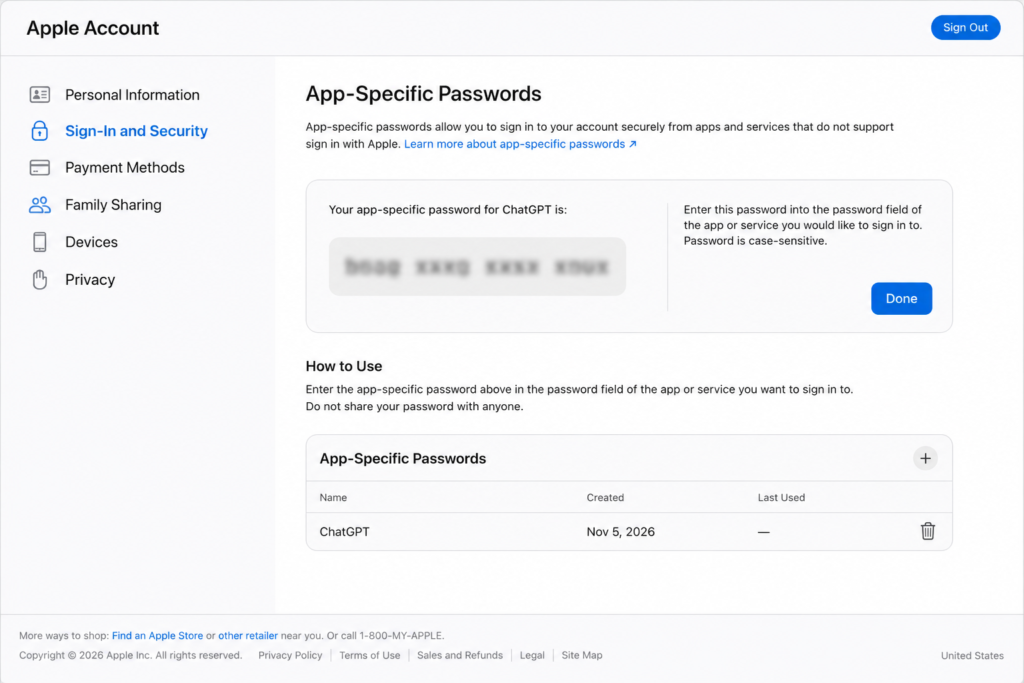
Step 3: Create an app-specific password
This is a one-time password Apple makes for outside apps, so ChatGPT never sees your real Apple password.
- Go to account.apple.com and sign in.
- Open Sign-In and Security, then App-Specific Passwords.
- Click Generate an app-specific password and name it “ChatGPT” so you can find it later.
- Copy the password Apple shows you. You’ll paste it into ChatGPT next.
Apple’s support page on app-specific passwords has the full details.
Step 4: Open Plugins in ChatGPT
On the web, desktop app or iPhone app, go to Settings > Plugins. Look for iCloud Mail and iCloud Calendar, often under New & Noteworthy. Open the one you want and select connect (or the + button).
If you don’t see them yet, OpenAI says availability can depend on region, plan and workspace. Check again in a few days.
Step 5: Enter your details
- For iCloud Mail: enter your @icloud.com, @me.com or @mac.com address and paste the app-specific password.
- For iCloud Calendar: enter your primary Apple Account email, which may be different from your iCloud Mail address, and an app-specific password.
Use the app-specific password, not your normal Apple password. Review the access ChatGPT asks for before you approve.
Step 6: Set permissions and test it
Before using it, set the plugin’s permission to Always ask, so ChatGPT checks with you before sending an email or changing an event. Then try a safe test, like “What’s on my calendar tomorrow?”
Tip: if you’re unsure, connect Calendar first and hold off on Mail. A wrong calendar entry is easy to fix. A wrong email isn’t.
What You Can Do With It: 12 Prompts to Try
The Mail plugin can search messages, summarize threads, draft replies and send emails. The Calendar plugin can read, create and update events. Both can look up your iCloud contacts (read only). The real power is combining them: in OpenAI’s demo, ChatGPT found event details in an email, checked the calendar for a free evening and added the visit.
Inbox prompts
- “Catch me up on my iCloud inbox from the last 3 days. Group it by what needs a reply, what’s FYI, and what I can ignore.”
- “Find the last email from [client name] about the invoice and summarize what they asked for.”
- “Draft a polite reply to [name]’s latest email saying I can deliver by Friday. Don’t send it yet.”
- “List every email this month that mentions a payment, invoice or receipt.”
- “Which emails from this week am I still waiting on a reply for?”
Calendar prompts
- “What’s on my calendar this week? Flag any days with back-to-back meetings.”
- “Find a free 1-hour slot next Tuesday or Wednesday afternoon.”
- “Move my call with [name] on Thursday to the same time Friday.”
- “Add a 30-minute ‘invoice follow-ups’ block every Monday at 10am.”
Mail + Calendar together
- “Check my email for any meeting invites or dates from clients this week and add them to my calendar.”
- “Before my 3pm call with [name], find our last three emails and give me a quick brief.”
- “Find the email with the details for [event] and put it on my calendar on a free evening.”
OpenAI hasn’t published a full list of what each plugin can do, so test anything new (like recurring events) on something harmless first.
Freelancer tip: prompt #11 is the one worth building a habit around. A two-line brief before every client call makes you look prepared, and it takes ChatGPT seconds.
If you’re deciding whether a paid plan is worth it for heavier use, our ChatGPT Plus review covers the limits. For more tools like this, see our best AI productivity tools.
Is It Safe? What You’re Actually Giving ChatGPT
Your inbox holds bank alerts, password resets and client details, so it’s worth five minutes of setup to protect it.
- The app-specific password opens more than your inbox. Apple says an app with one can reach the mail, contacts and calendars you store in iCloud. You can have up to 25 of these passwords and revoke each one separately.
- Your data may be used for training on personal plans. On Free, Go, Plus and Pro, OpenAI may use what ChatGPT reads through apps to train its models when Improve the model for everyone is on. Business, Enterprise and Edu workspaces don’t do this by default.
- You control how much it can do alone. Permission options range from “Always ask” to “Allow low-risk actions,” and some apps offer “Allow all actions.” OpenAI itself warns that the last one carries extra risk.
Our safety setup checklist
- Turn off Improve the model for everyone in ChatGPT’s Data Controls before connecting.
- Keep Mail on Always ask, so nothing is sent without your OK.
- Name the app-specific password “ChatGPT” so it’s easy to find and revoke.
- Don’t connect a mailbox full of client data to a personal ChatGPT account. If you run your business on iCloud mail, consider a Business workspace.
- Revoke the password when you stop using the plugins.
More on what’s safe to share with AI tools in our guide to using AI responsibly.
How to Disconnect iCloud From ChatGPT
- In ChatGPT, go to Settings > Plugins, open iCloud Mail or iCloud Calendar, and disconnect it.
- Then go to account.apple.com > Sign-In and Security > App-Specific Passwords and revoke the “ChatGPT” password.
Step 2 matters most, because it cuts off access even if something was missed in step 1. Changing your main Apple Account password also revokes every app-specific password at once.
Troubleshooting
| Problem | Fix |
|---|---|
| I don’t see iCloud in Plugins | It’s still rolling out by region, plan and workspace. Update the app and check again in a few days, or try chatgpt.com in a browser |
| “Incorrect password” error | Use the app-specific password, not your normal Apple password. Generate a fresh one if needed |
| Can’t create an app-specific password | Turn on two-factor authentication for your Apple Account first |
| Calendar won’t connect | Use your primary Apple Account email, which can differ from your @icloud.com address |
| ChatGPT can’t see my Gmail or Outlook emails | The iCloud plugin only reaches iCloud. Connect Gmail or Outlook separately |
| Not available on my Android phone | OpenAI lists web, desktop and iPhone. On Android, use chatgpt.com in your browser |
| Works at work but not at home (or the reverse) | Business and Enterprise admins control which plugins are on in their workspace |
FAQ
Is the ChatGPT iCloud plugin free? Yes. OpenAI made iCloud Mail and Calendar available on all ChatGPT plans, including Free.
Do I need my Apple ID password? No. You use an app-specific password created in your Apple Account, so ChatGPT never sees your real password.
Can ChatGPT send emails from my iCloud account? Yes, the Mail plugin can draft and send messages. Keep it on “Always ask” so it checks with you first.
Will ChatGPT see my Gmail if it’s in Apple Mail? No. The plugin only reaches iCloud. Connect Gmail separately with its own plugin.
Does it work on Android? OpenAI lists the web, the desktop app and iPhone. Android users can use chatgpt.com in a browser.
Does it work with Apple Messages? No. That’s a separate Apple Messages plugin, available only in ChatGPT Work and Codex on the Mac app.
How do I stop ChatGPT accessing my iCloud? Disconnect it in Settings > Plugins, then revoke the app-specific password at account.apple.com.
Is this better than Siri? They do different jobs. Siri is built into your iPhone. ChatGPT is better at long, multi-step requests like “brief me on this client before my call.”
The Bottom Line
If you use an iCloud email and Apple Calendar, this is a free and genuinely useful upgrade. Inbox catch-ups and pre-call briefs alone can save you real time every week. Spend the extra five minutes on setup: use an app-specific password, turn off model training, and keep Mail on “Always ask.”
Use Microsoft 365 instead? Our Copilot Pro review for small businesses covers the Outlook side. Weighing assistants? See ChatGPT vs Claude.